
If your DataFly eSIM has been installed successfully but your internet is not working, the issue is most likely related to your iPhone settings. In most cases, this happens because Data Roaming is turned off, the wrong eSIM is selected for Cellular Data, or both. This guide will help you check your settings and make sure everything is configured correctly.
Part 1: Enable Data Roaming for Your DataFly eSIM
Open your iPhone Settings.
Tap "Cellular".
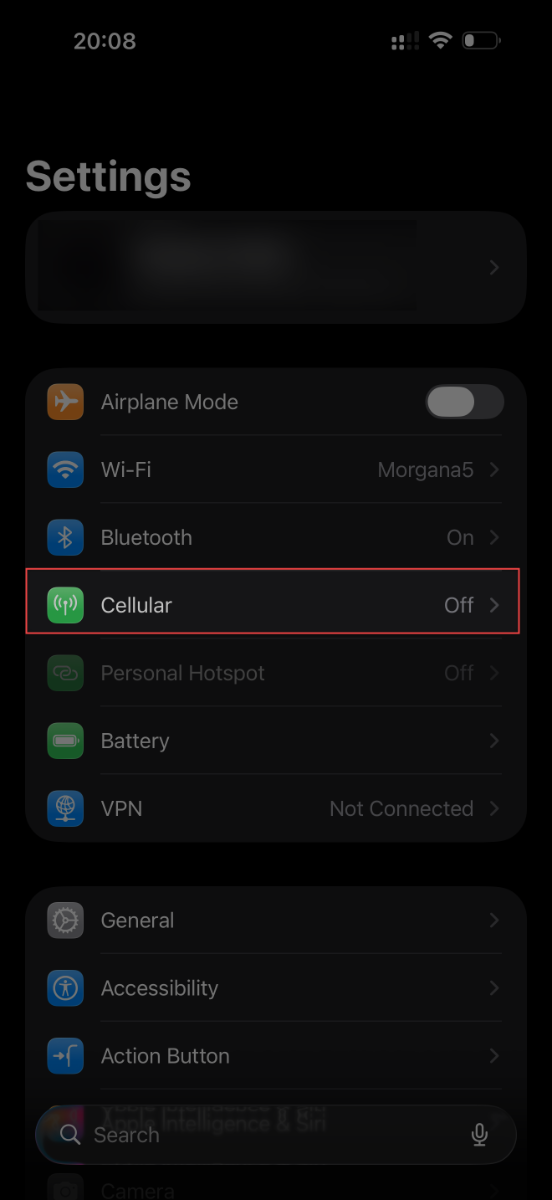
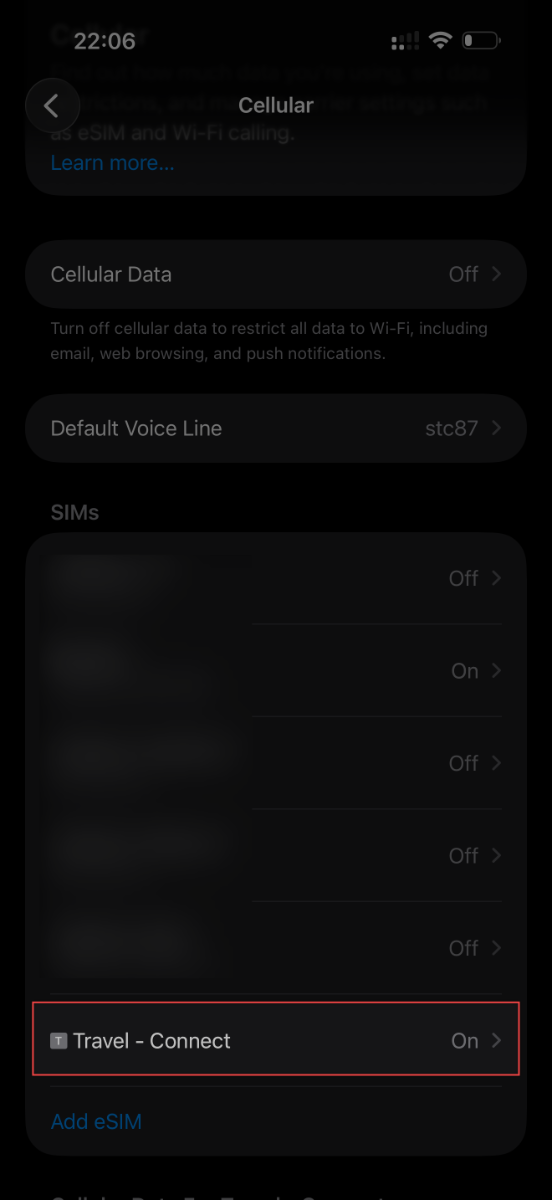
Tap the correct eSIM and make sure you do not confuse it with another line.
Make sure the eSIM is turned on and that "Data Roaming" is also turned on.
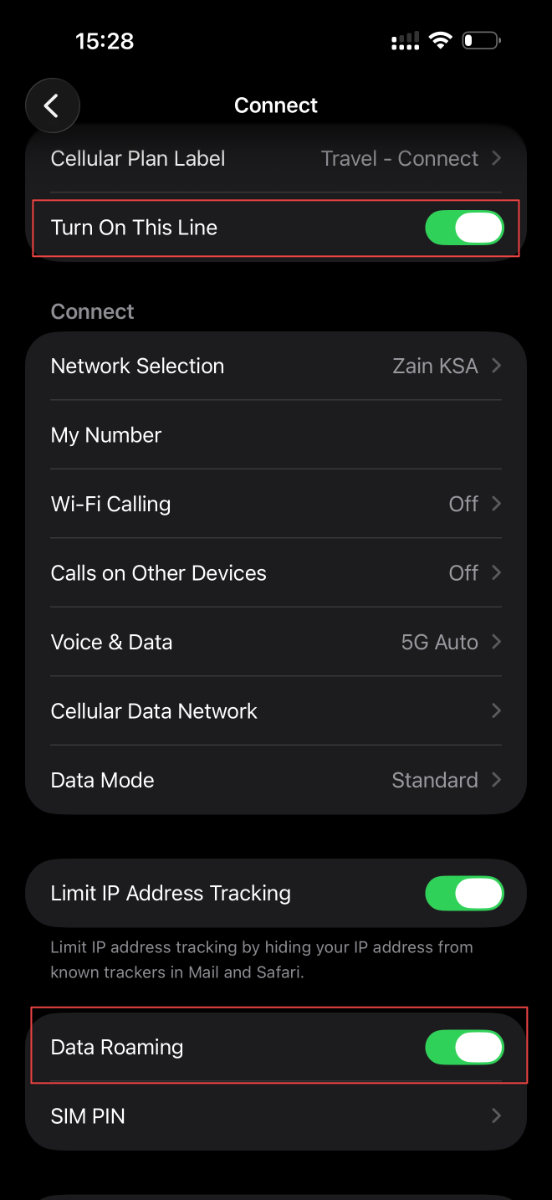
Now that you have confirmed Data Roaming is enabled, continue to Part 2.
Part 2: Select the eSIM as Your Preferred Cellular Data Line
Go back to the Cellular screen.
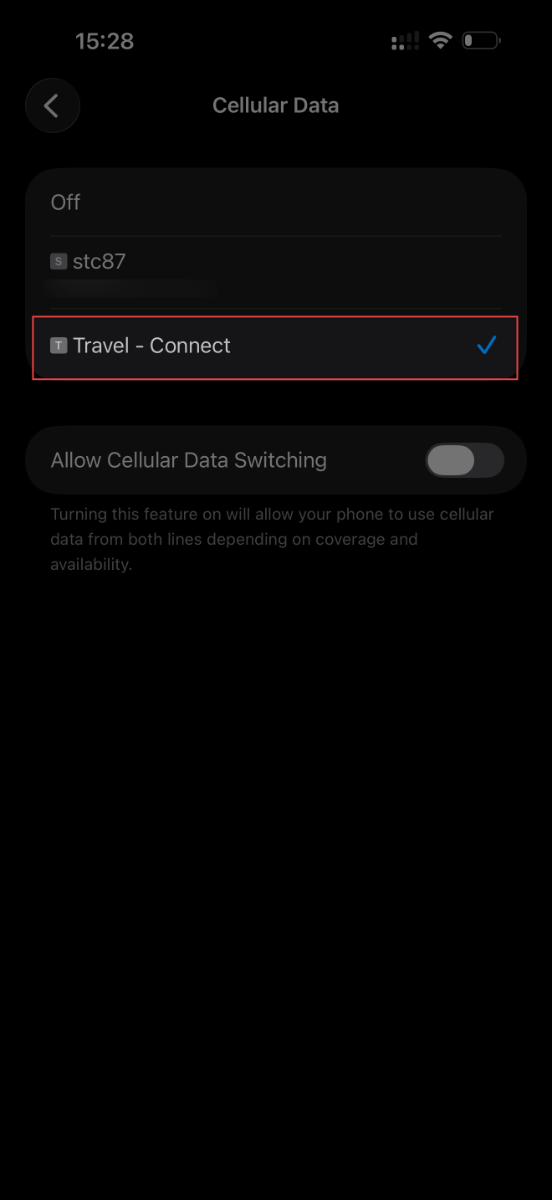
Tap "Cellular Data".
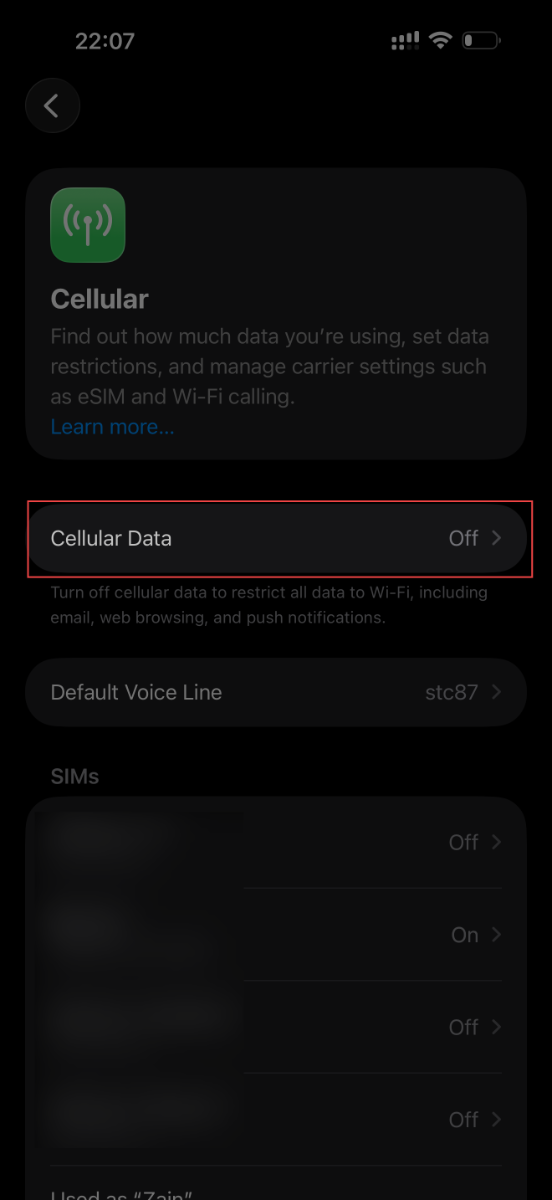
Make sure the DataFly eSIM is selected for Cellular Data.
After completing the steps in Part 1 and Part 2, your internet should now work properly 🎉.
Troubleshooting
Q: I followed all the steps and made sure my DataFly eSIM is selected for Cellular Data, but the internet still does not work.
A: Please try the following steps in order:
Turn on Airplane Mode for 5 seconds, then turn it off.
Restart your iPhone.
Try using the internet again after completing the two steps above.
If the internet still does not work after trying all of the steps above, you can easily request a refund or contact live support through the app for direct assistance.