
If you’ve installed your DataFly eSIM but mobile data isn’t working, don’t worry. In most cases, the issue is one (or both) of the following:
Data roaming is not enabled for the DataFly eSIM
The DataFly eSIM is not set as the preferred SIM for mobile data
Follow the steps below to make sure your eSIM is set up correctly.
Part 1: Set your DataFly eSIM as the preferred SIM for mobile data
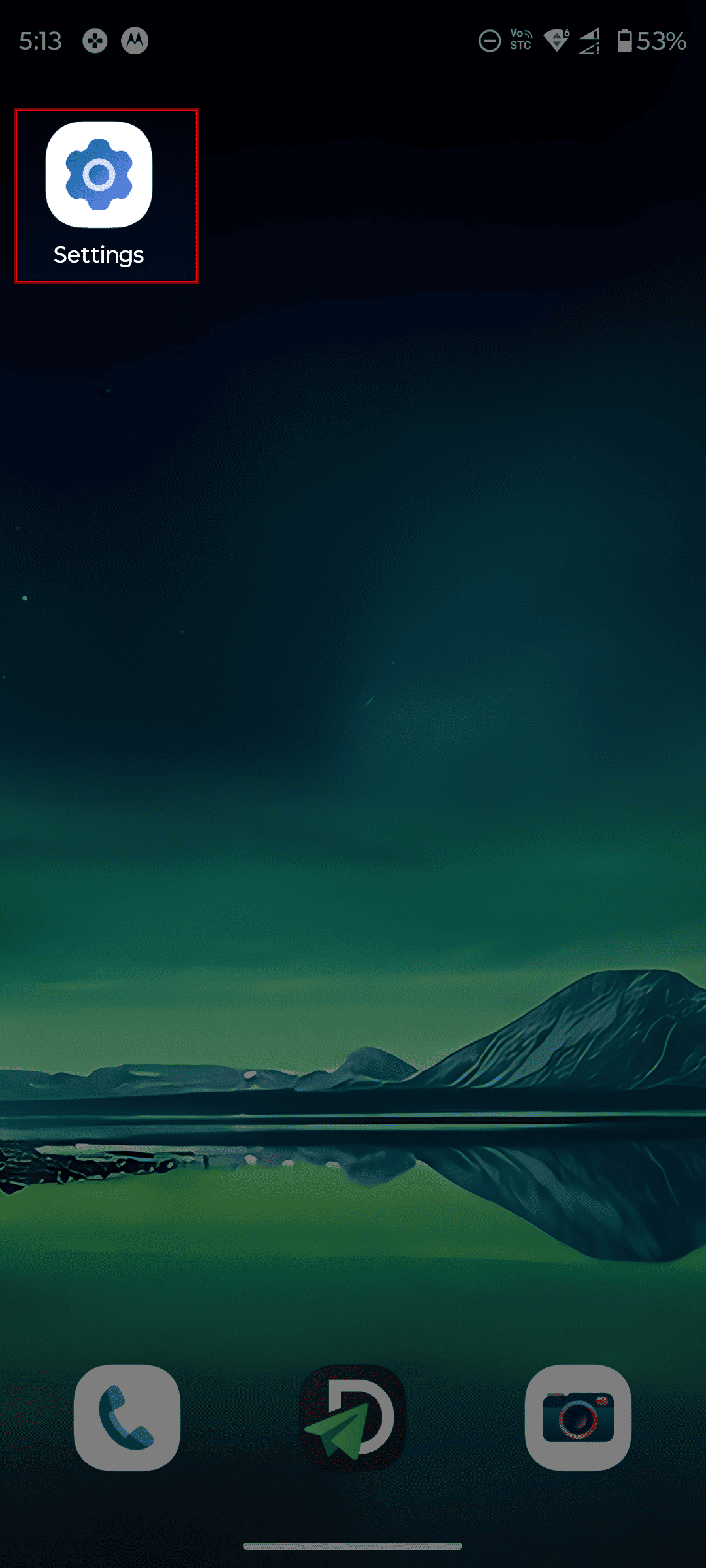
Open "Settings"
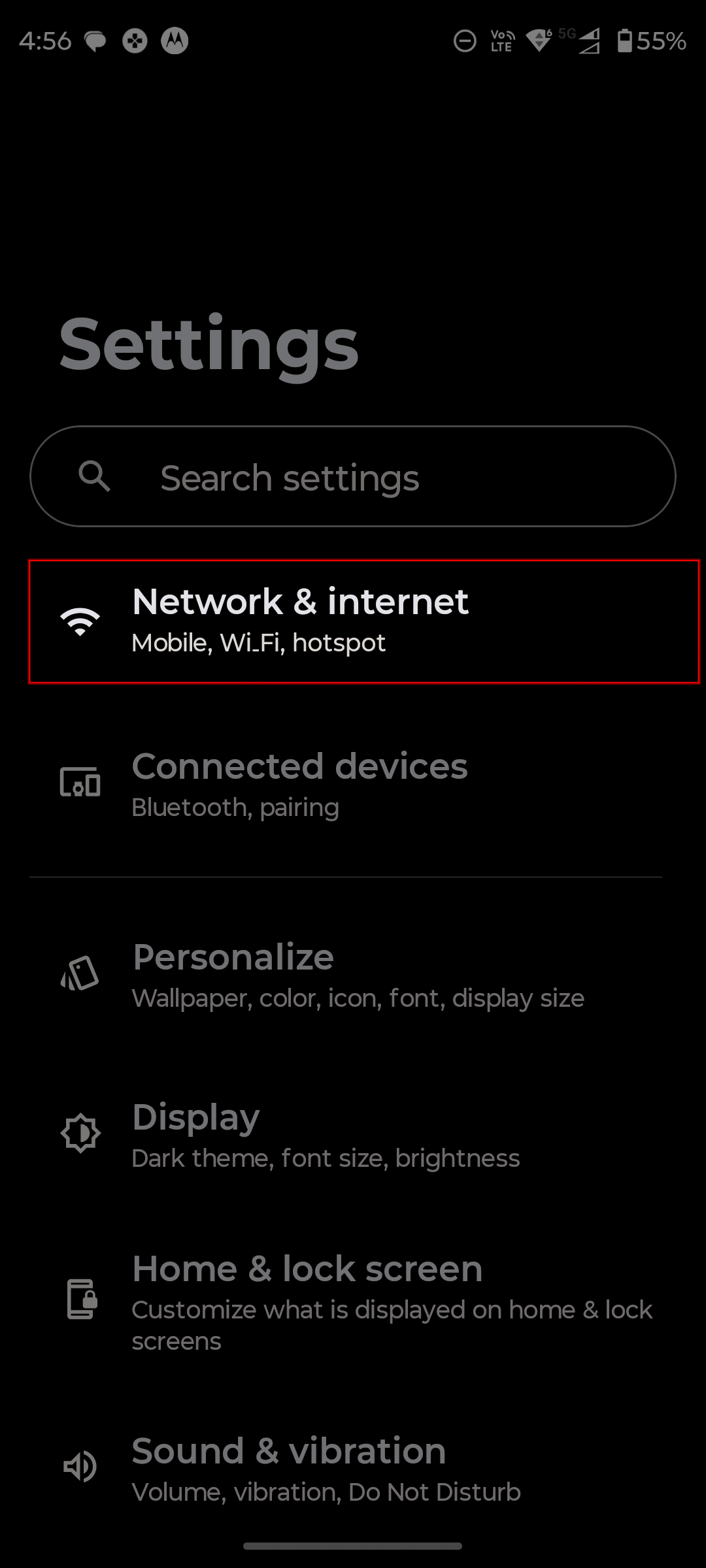
Tap "Network & internet"
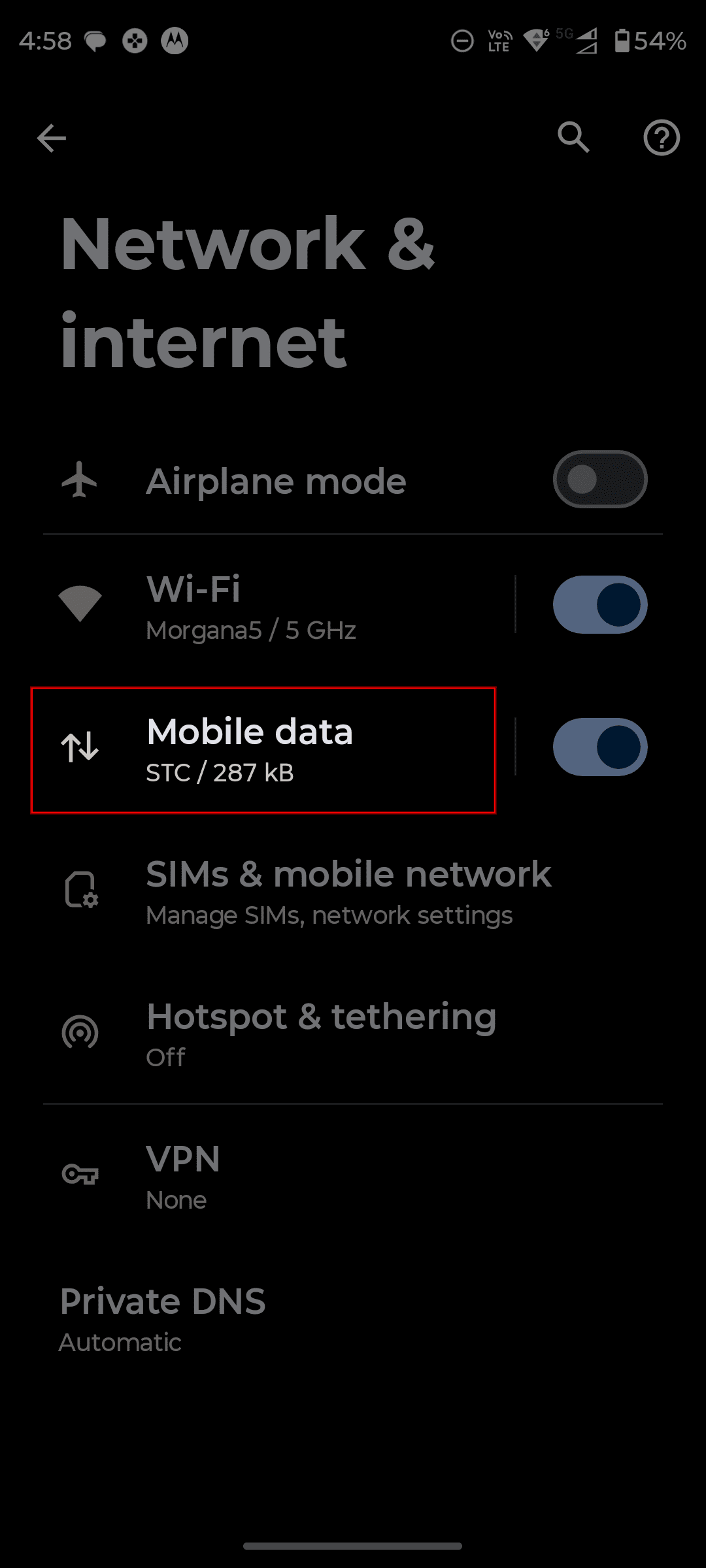
Tap "Mobile data"
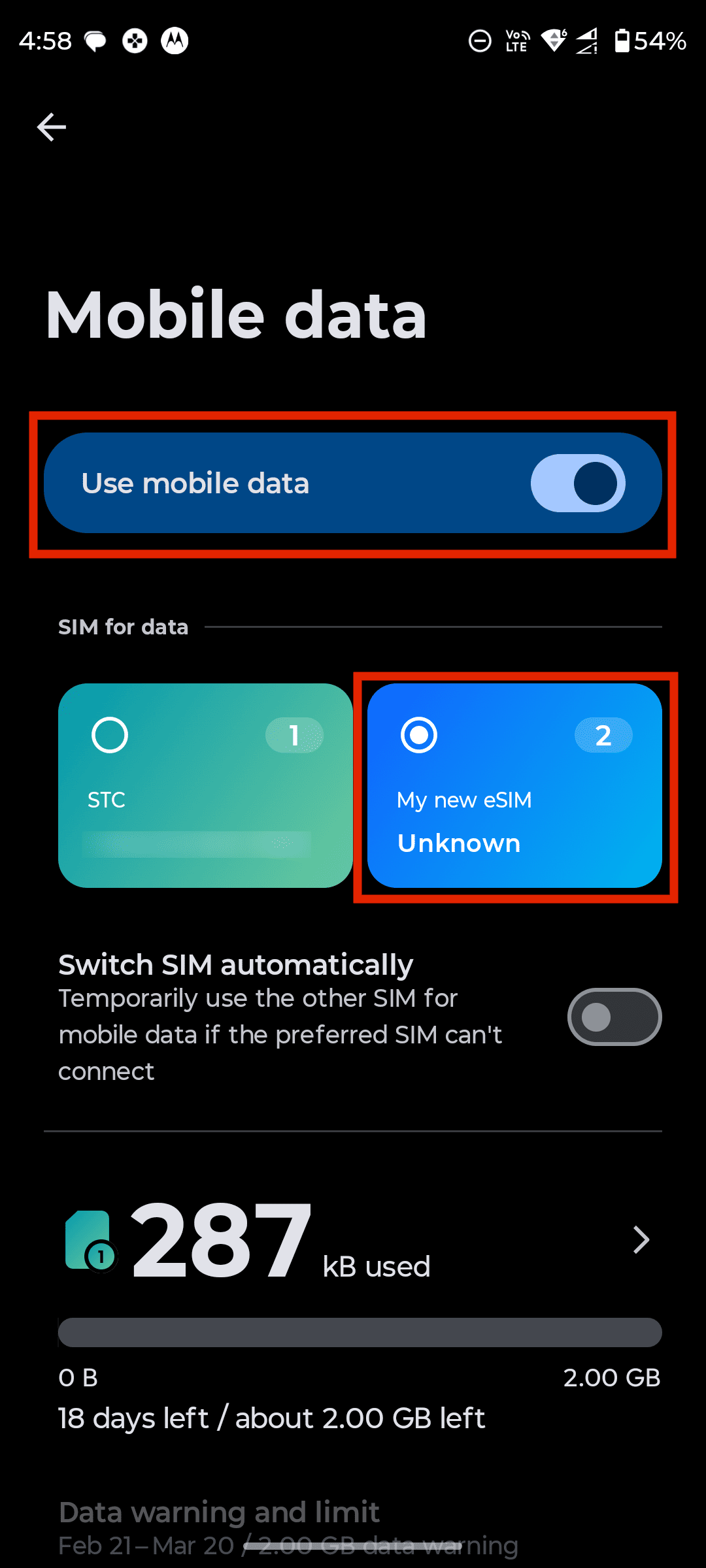
Turn on "Use mobile data", then select your DataFly eSIM as the preferred SIM for mobile data.
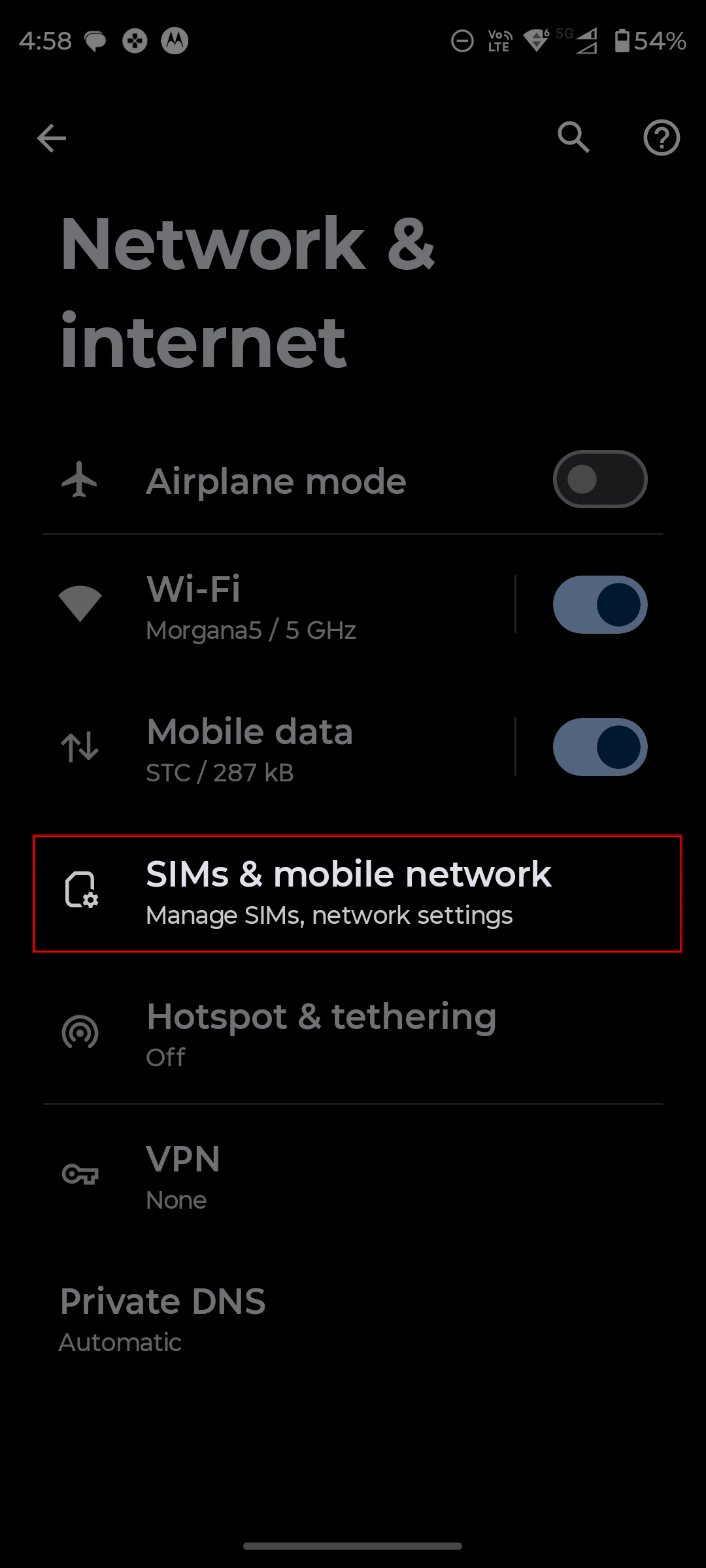
Exit the "Mobile data" screen to go back to "Network & internet", then tap "SIMs & mobile network"
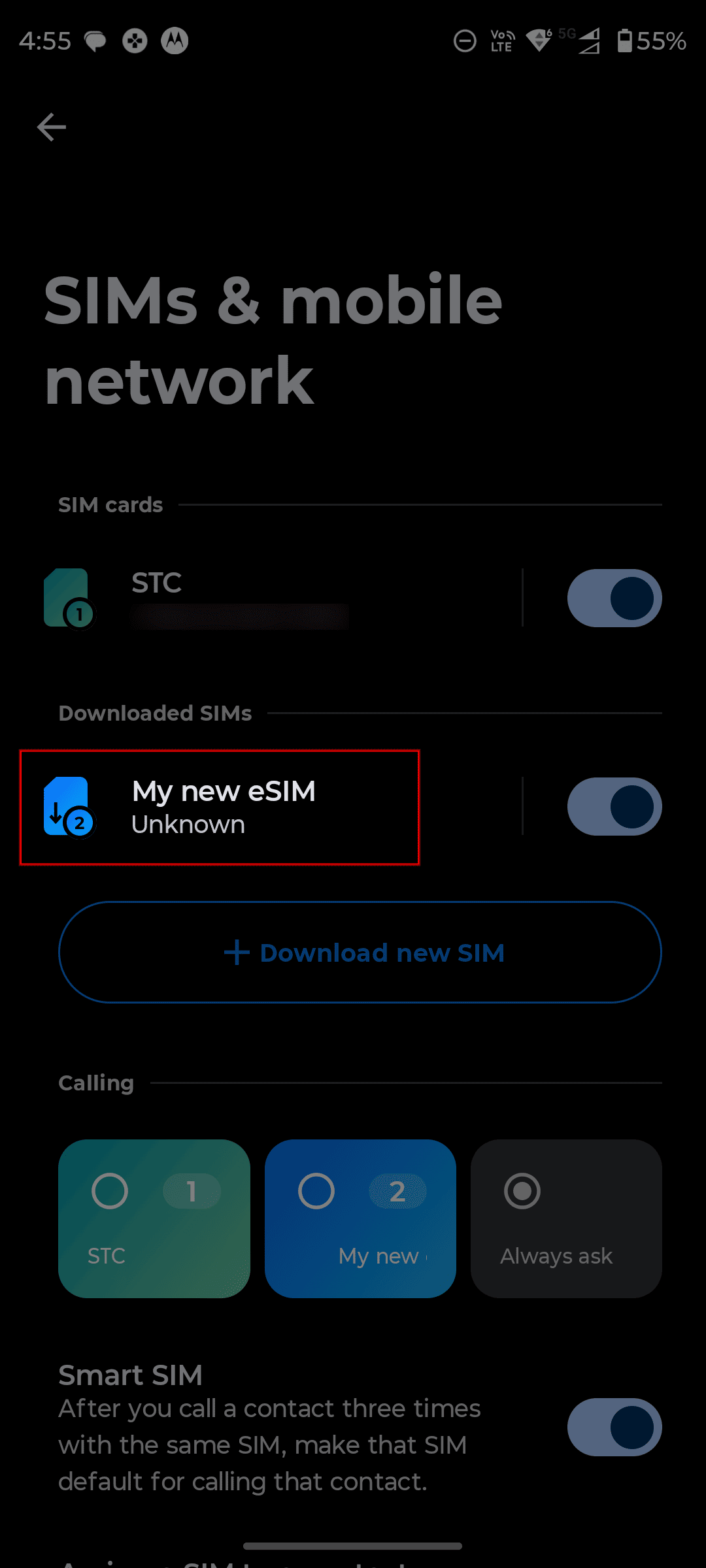
Tap your eSIM in the area highlighted in red in the screenshot below.
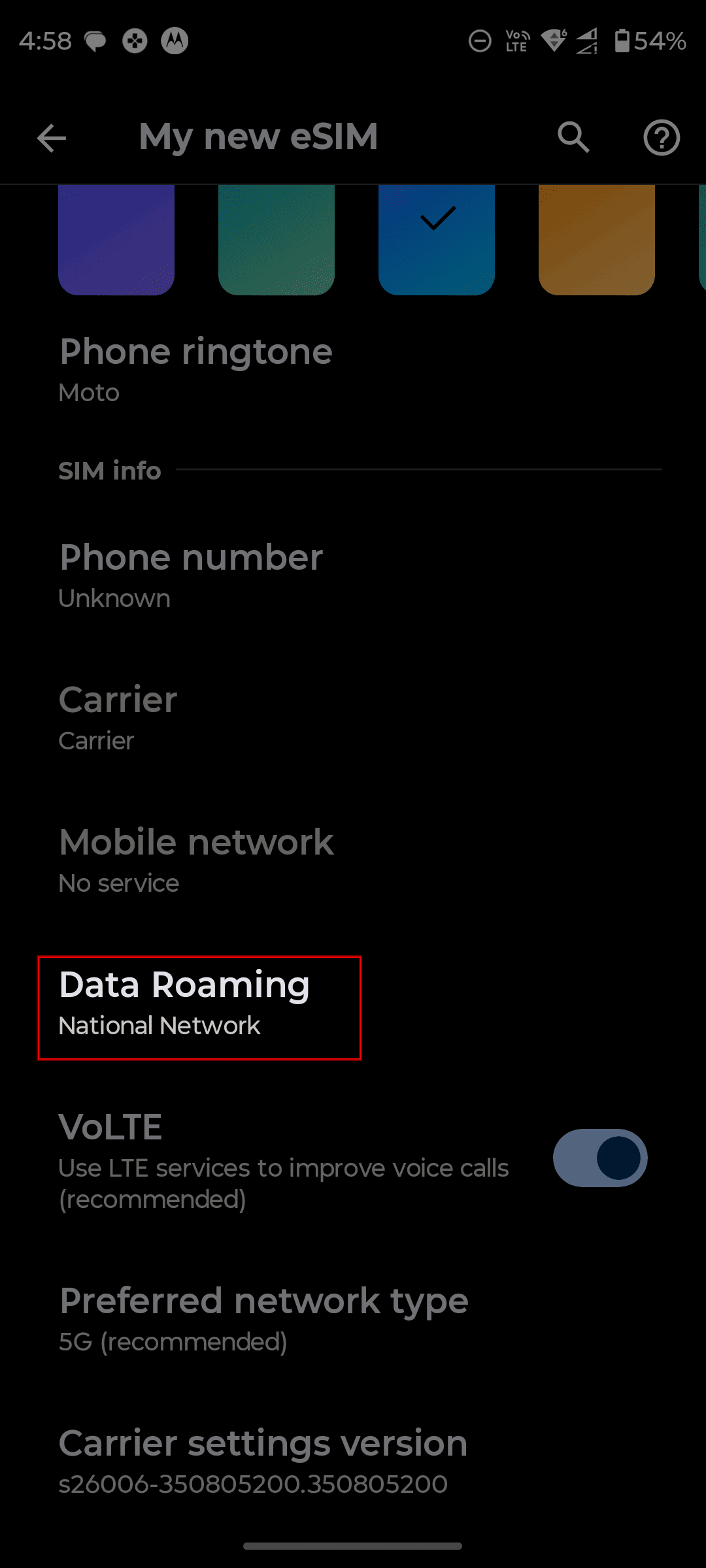
Scroll down a little until you find "Data Roaming", then tap it.
Select "All network"
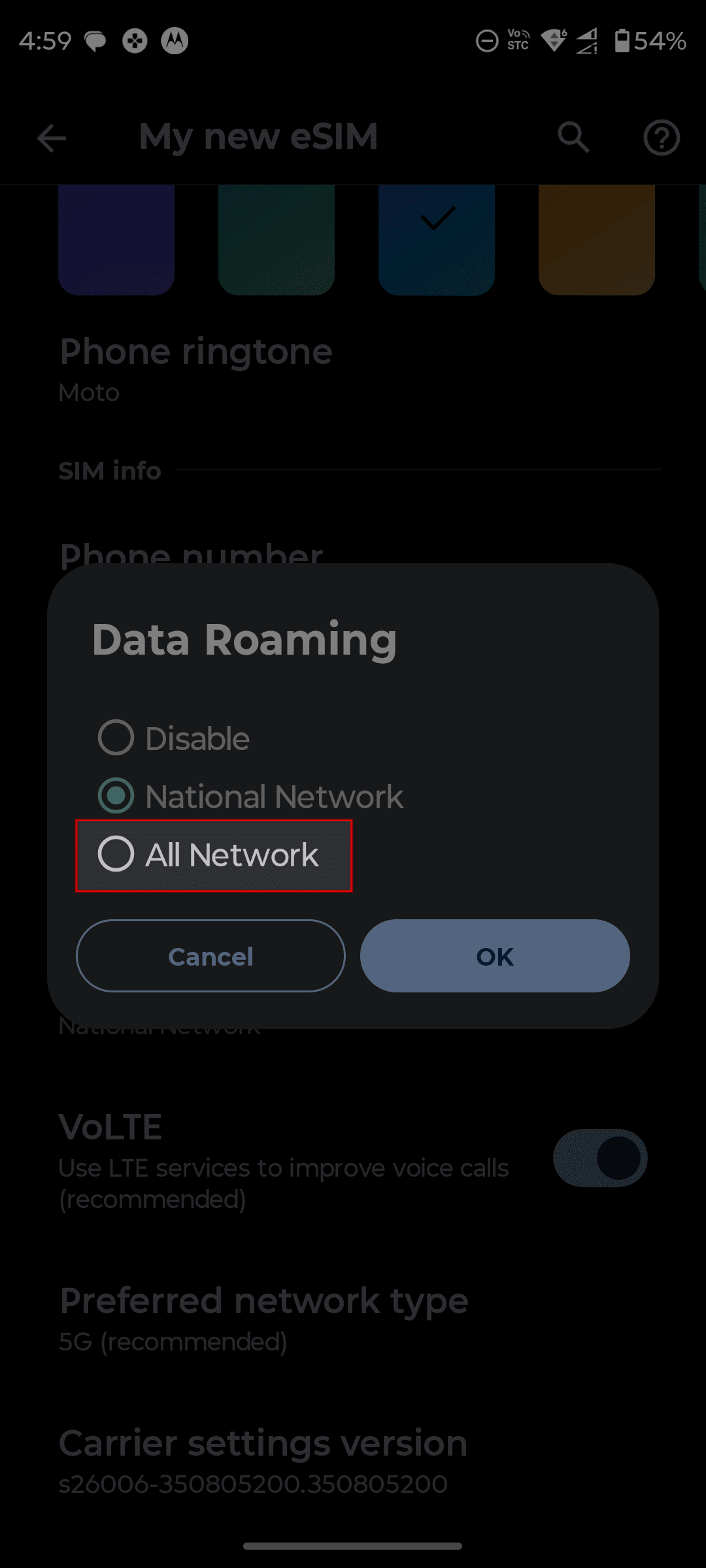
- 🔴 ImportantOn some devices, the roaming type selection menu may not appear as shown in the image above. Instead, only a single toggle to turn roaming on or off may be available. In this case, simply make sure that this toggle is turned on.
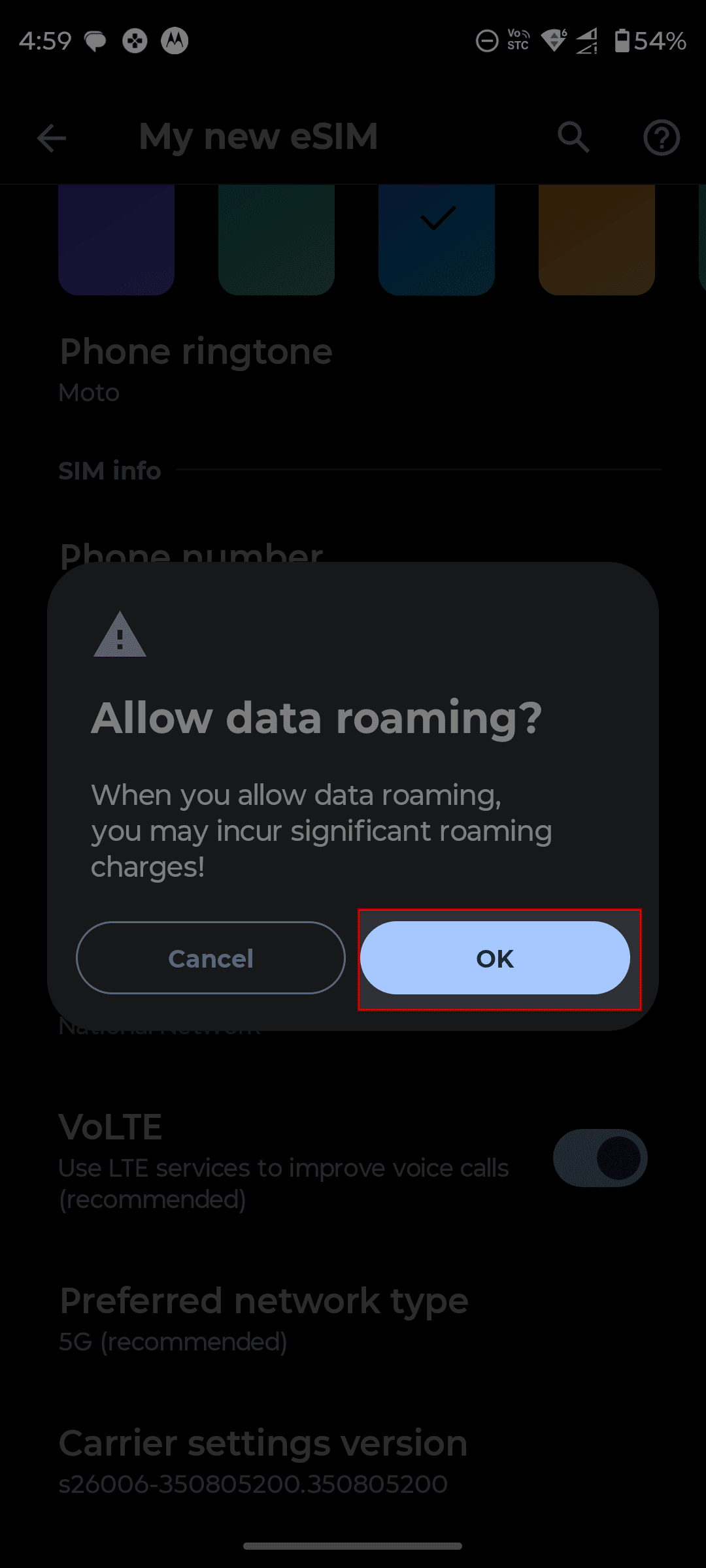
A warning message will appear before enabling data roaming. Tap "OK".
After completing the steps
Once you’ve finished the steps above, your basic settings are complete and mobile data should start working normally.
Still not working? Try these additional troubleshooting steps
Q: I followed all the steps and set DataFly as the mobile data SIM, but the internet still doesn’t work!
A: Please try the following steps in order:
Turn on Airplane mode for about 5 seconds, then turn it off again.
Restart your phone.
Try using mobile data again after completing the two steps above.
If mobile data still doesn’t work after all these steps, you can easily request a refund or contact live support through the app. Our team will help you check the settings and resolve the issue with you directly.