
If you installed your DataFly eSIM but the internet isn’t working, don’t worry. In most cases, mobile data won’t work because the eSIM is not selected as the Mobile Data line or Data Roaming is turned off (or both). Follow the steps below.
Step 1: Select your DataFly eSIM for Mobile Data
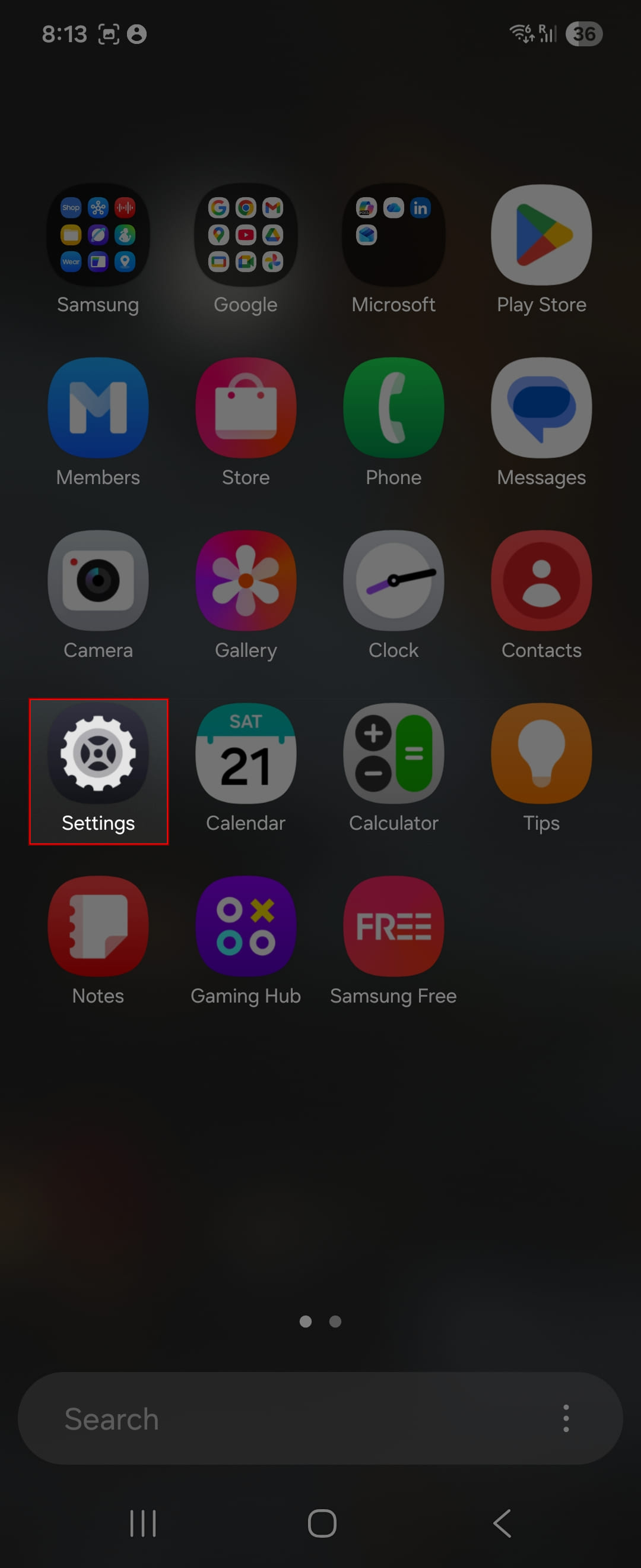
Open Settings
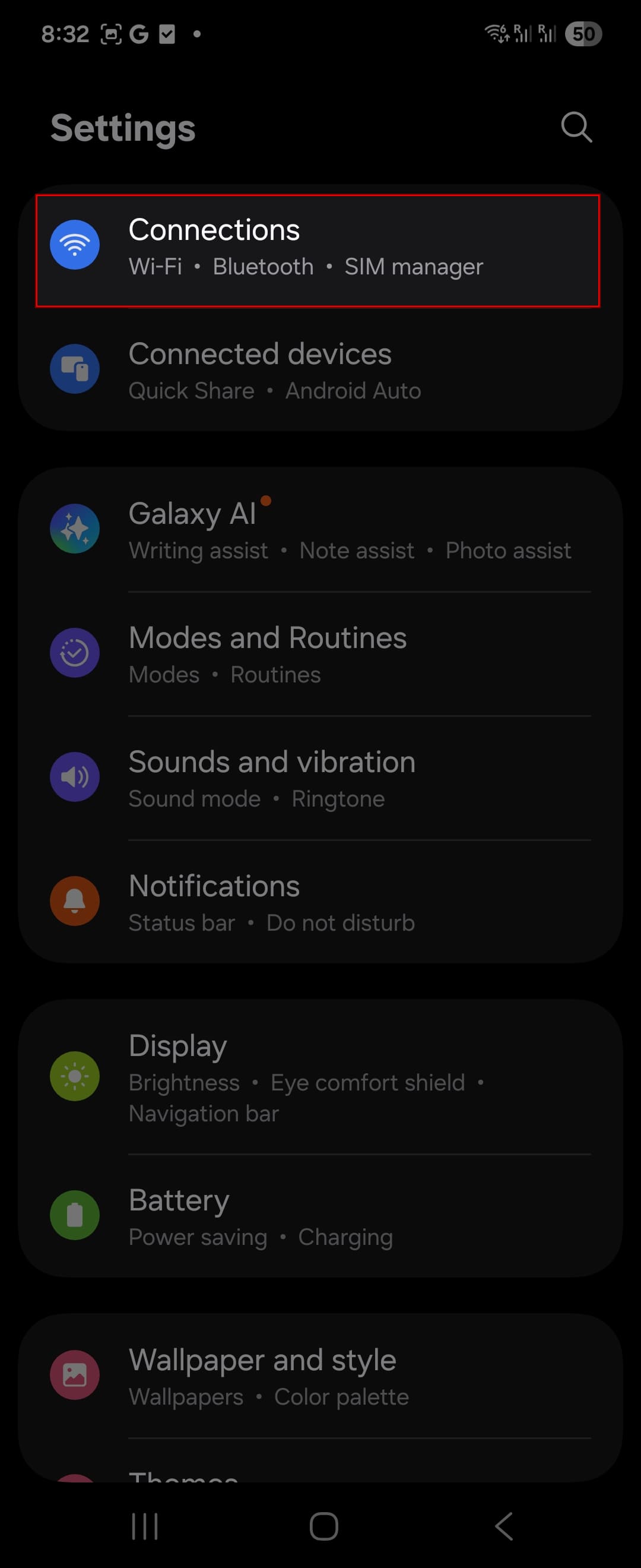
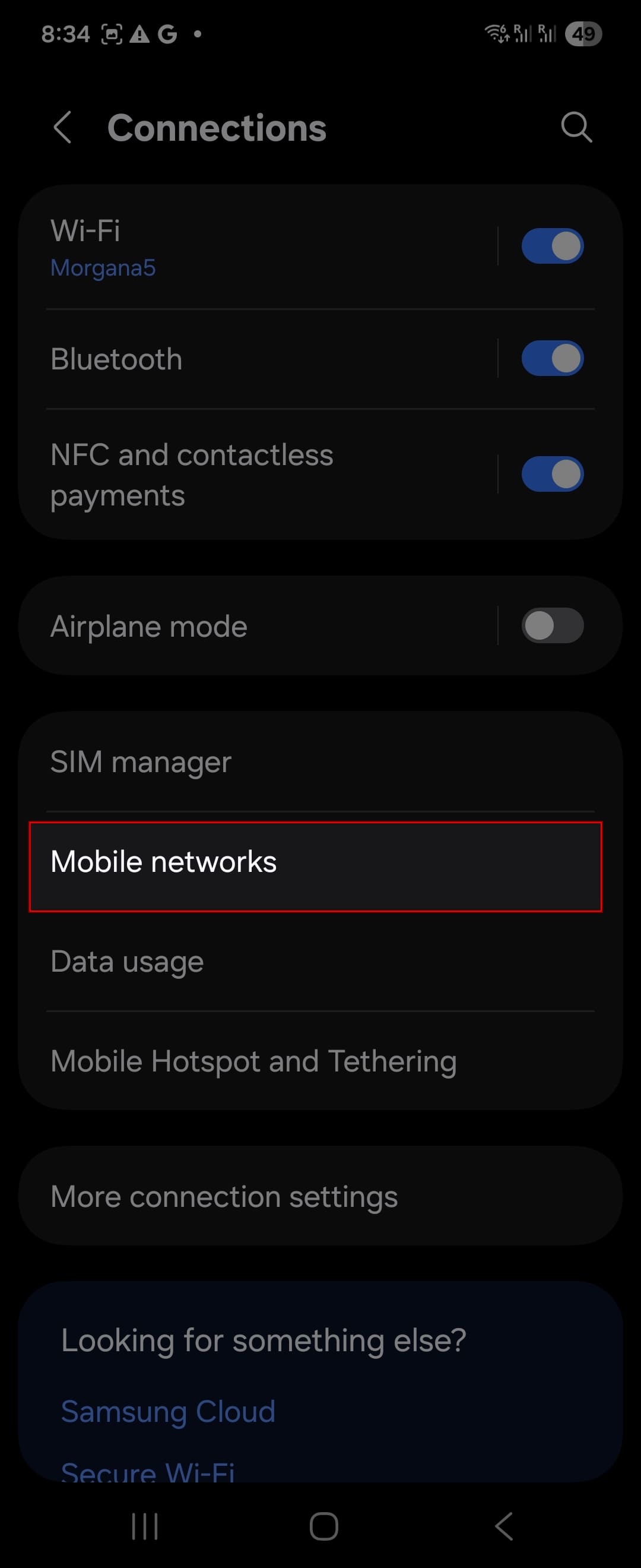
Tap Connections
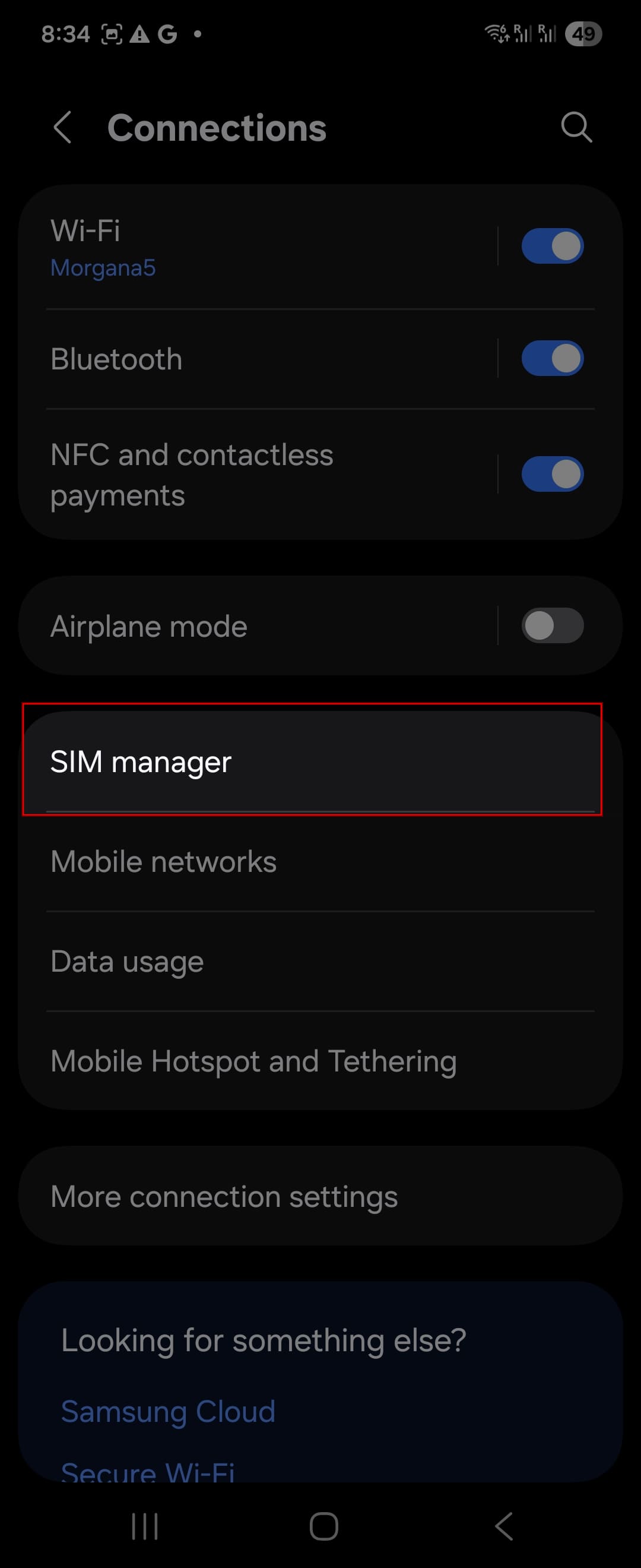
Tap SIM manager
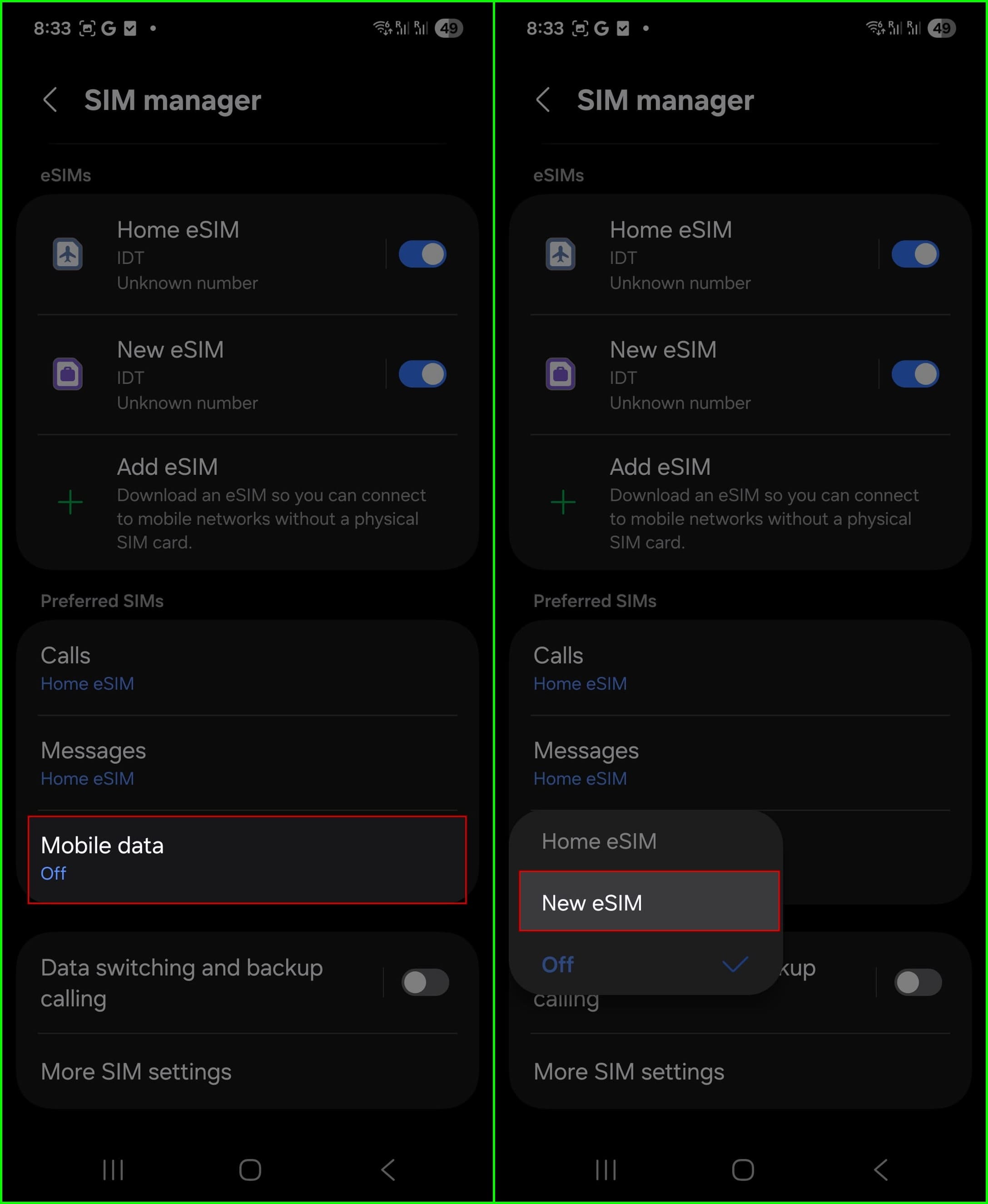
Under Mobile data, select your DataFly eSIM
Step 2: Turn ON Data Roaming for your DataFly eSIM
Exit SIM manager to go back to Connections
Tap Mobile networks
Turn Data roaming ON for your new eSIM
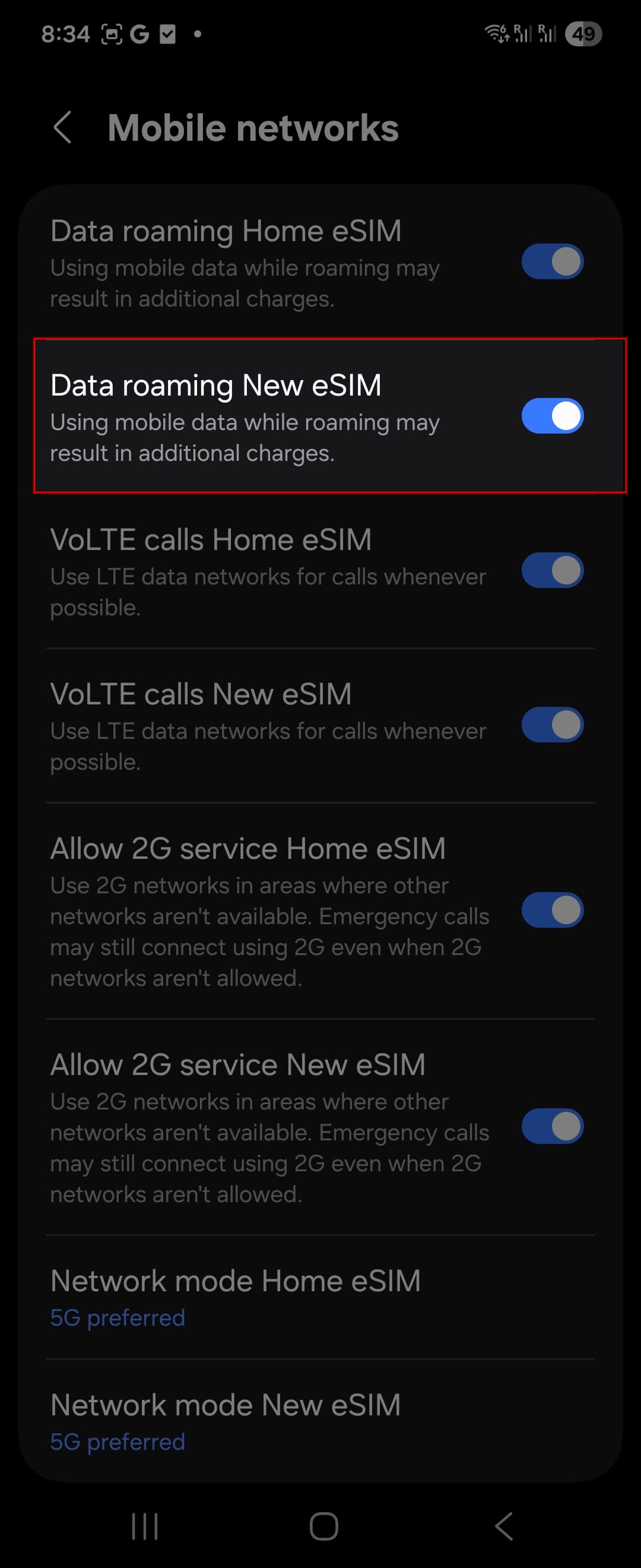 🔴 ImportantIf your eSIM doesn’t have an ON/OFF button, tap on it and then select “All Networks.”
Done.
Troubleshooting: I followed all steps but data still doesn’t work
If you double-checked everything above and mobile data still isn’t working, try the following:
Turn Airplane Mode ON for at least 5 seconds, then turn it OFF
Restart your phone
Try using the internet again
If it still doesn’t work, you can request a refund anytime: Request a Refund.
Or you can contact our support team through the live chat available in our app to assist you step by step.