
This guide will walk you through how to install your DataFly eSIM on an iPhone using the Quick Install feature.
Before you begin, please make sure you have the following:
A stable internet connection
An iPhone running iOS 15 or later
An eSIM-compatible iPhone
An iPhone that is carrier-unlocked
Part 1: Install the eSIM
Open the DataFly app.
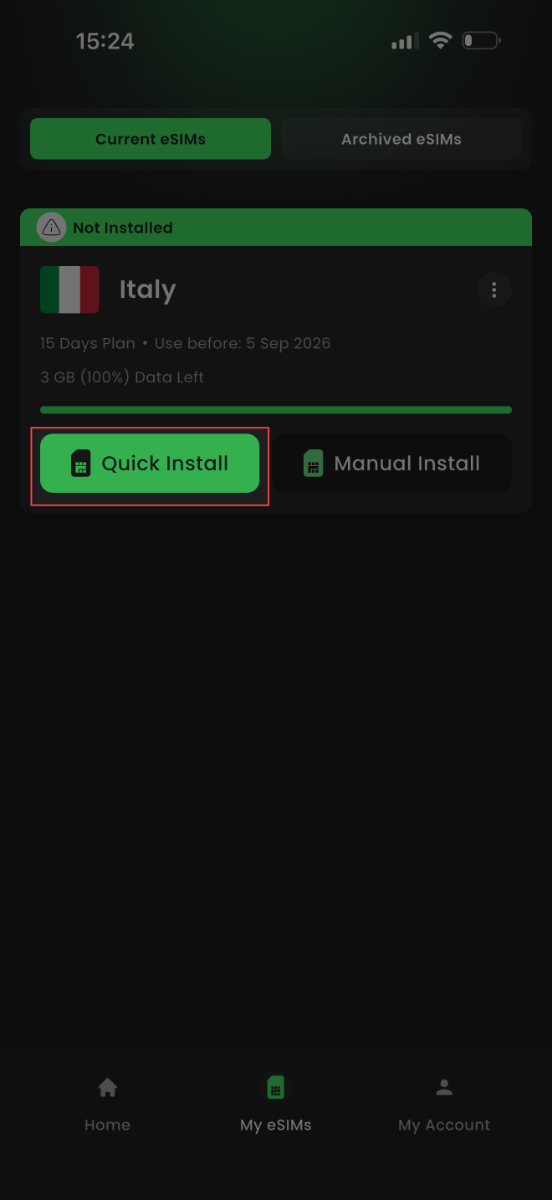
Tap "My eSIMs".
On your new eSIM, tap "Quick Install".
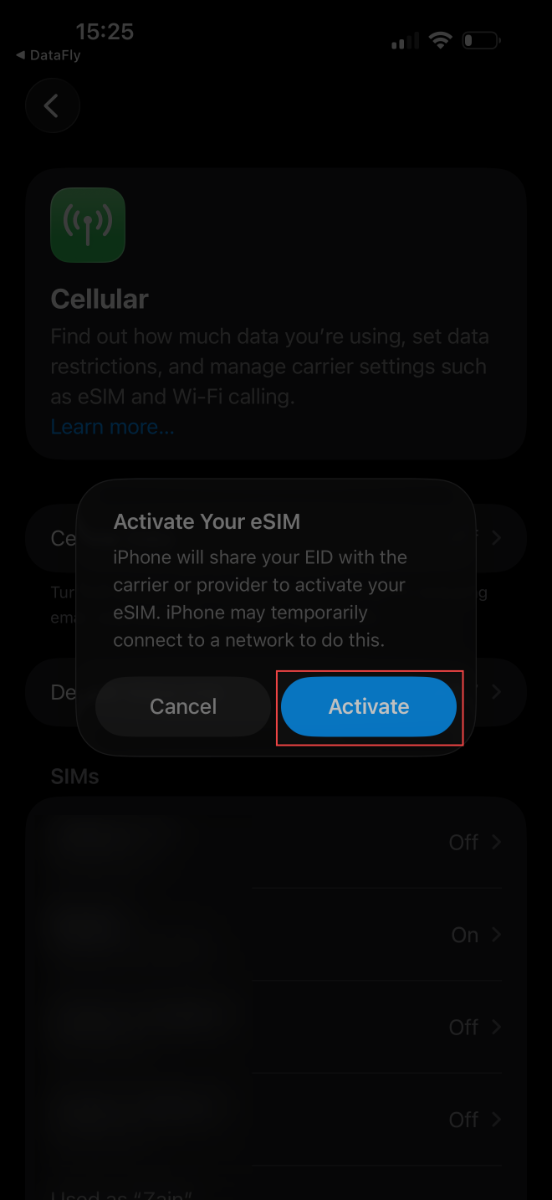
You will then be redirected to your device settings. Tap "Activate".
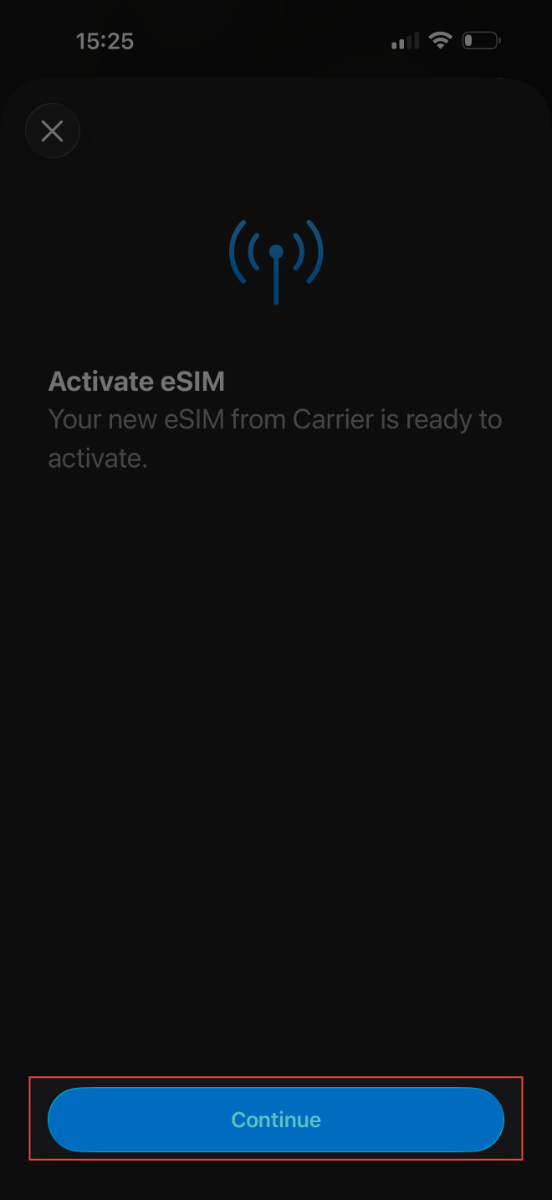
Please wait a moment while the installation is completed, then tap "Continue".
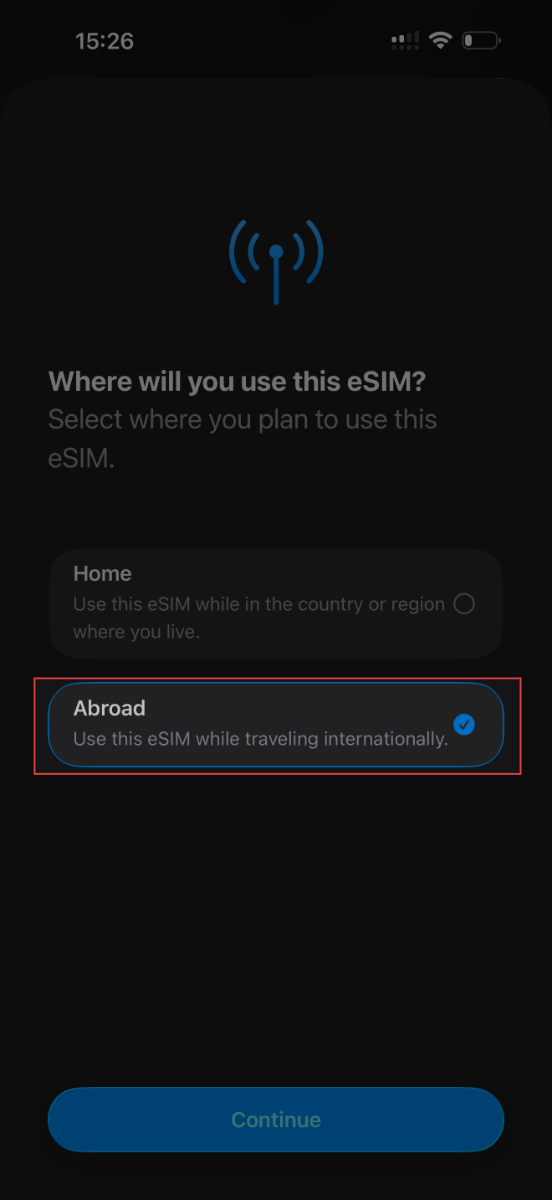
On the Where will you use this eSIM screen, select "Abroad".
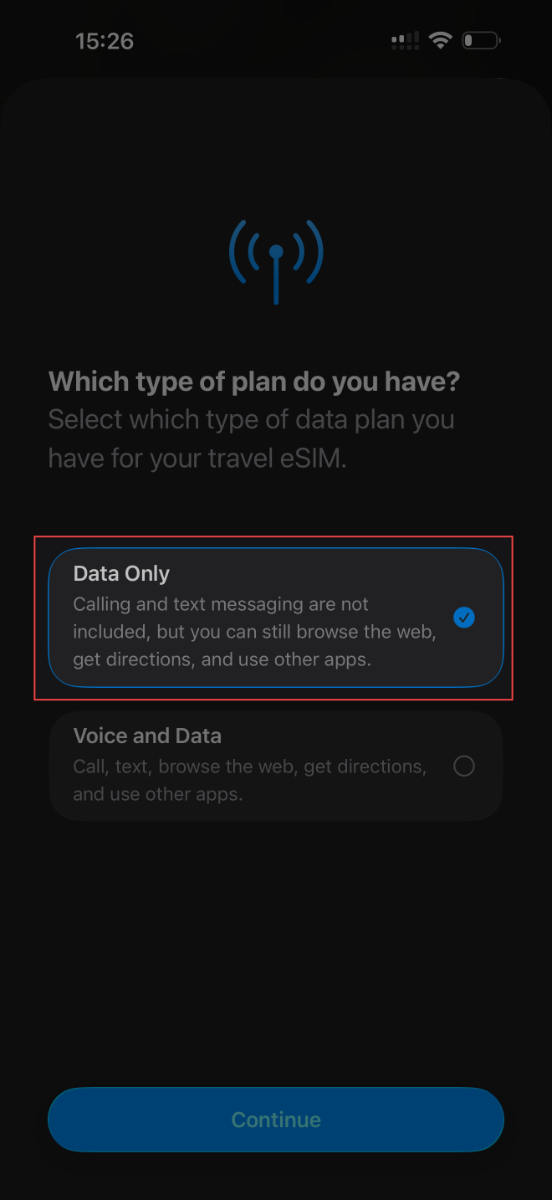
On the next screen, Which type of plan do you have?, select "Data Only".
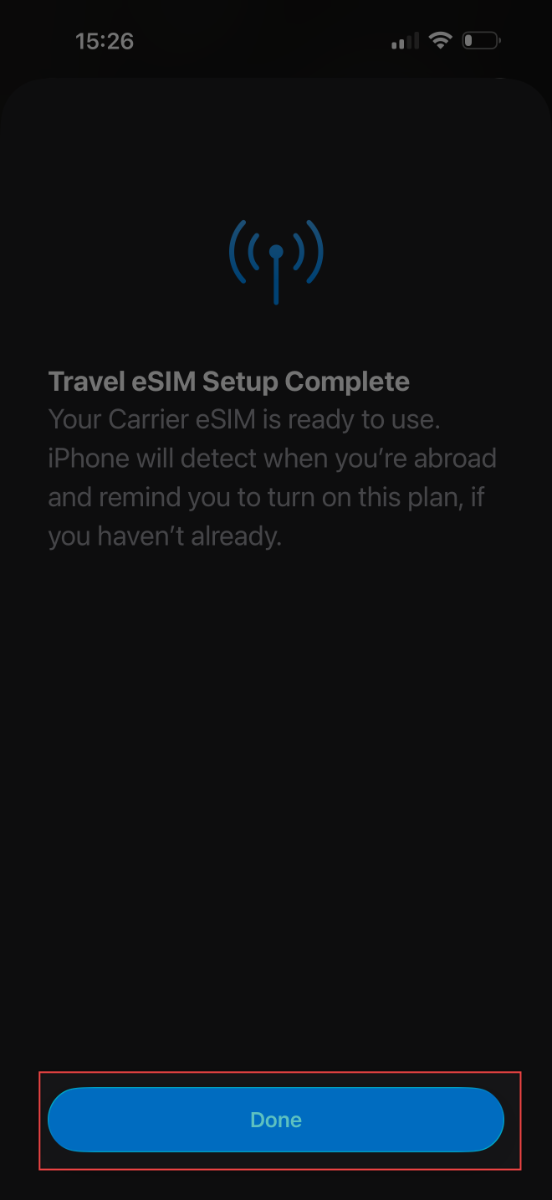
Once the installation is successful, you will see "Travel eSIM Setup Complete". Tap "Done".
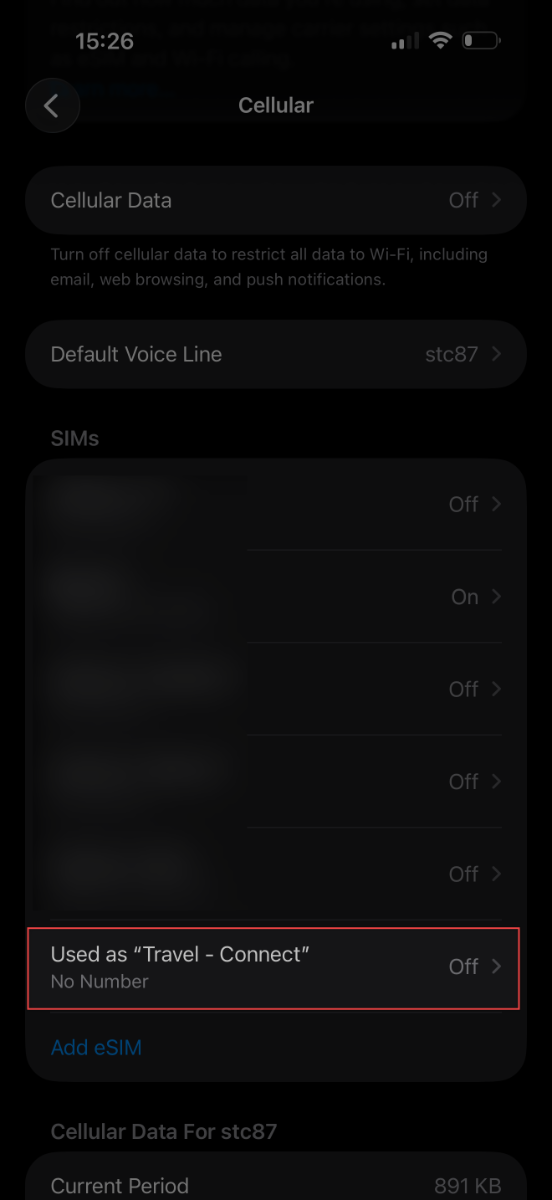
After installation, the eSIM will be turned off by default. You will need to turn it on, enable data roaming, and select it for Cellular Data to make sure your internet works as soon as you arrive at your destination. Please follow Part 2 to complete the setup.
Part 2: Turn On the eSIM, Enable Data Roaming, and Select It for Cellular Data
-
On the Cellular screen, tap your new eSIM.
-
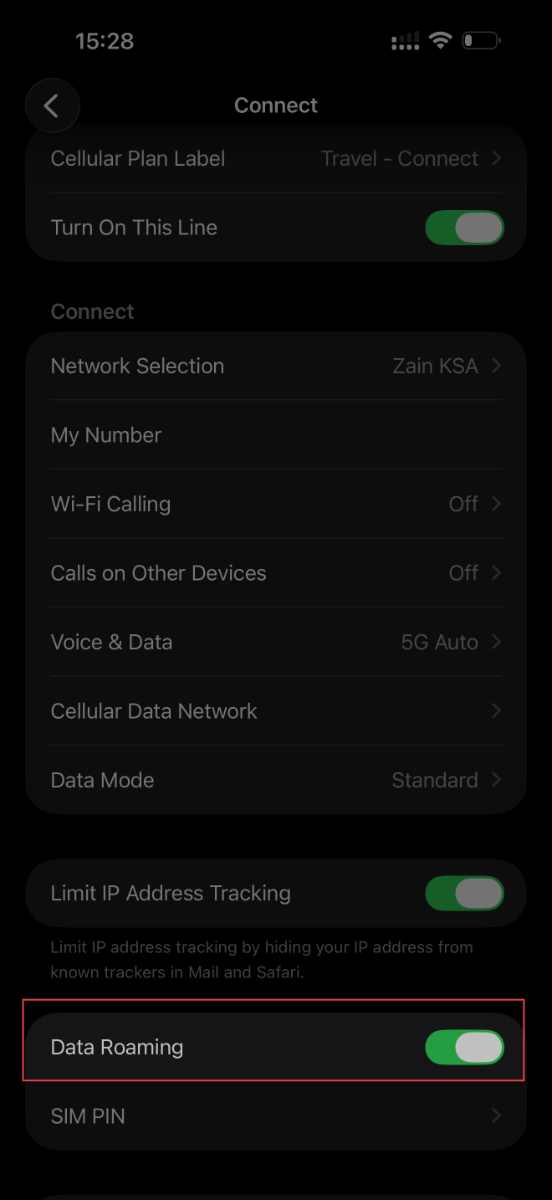
Turn on your new eSIM.

-
After turning it on, several options will appear, including "Data Roaming". Please turn it on.
-
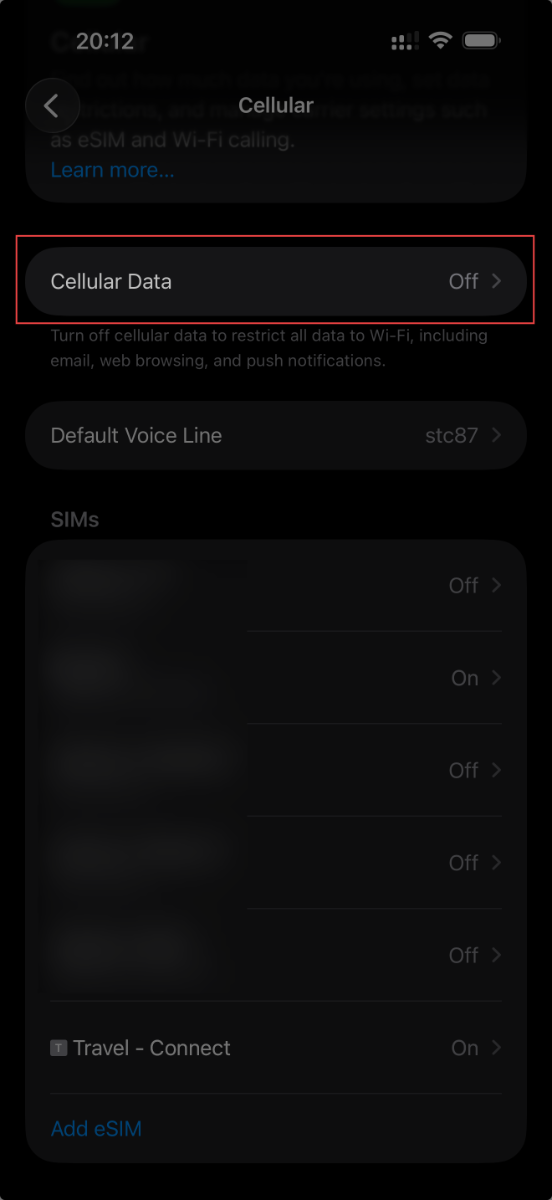
Tap the back button at the top of the screen to go back, then tap "Cellular Data".
-
Select your new DataFly eSIM.
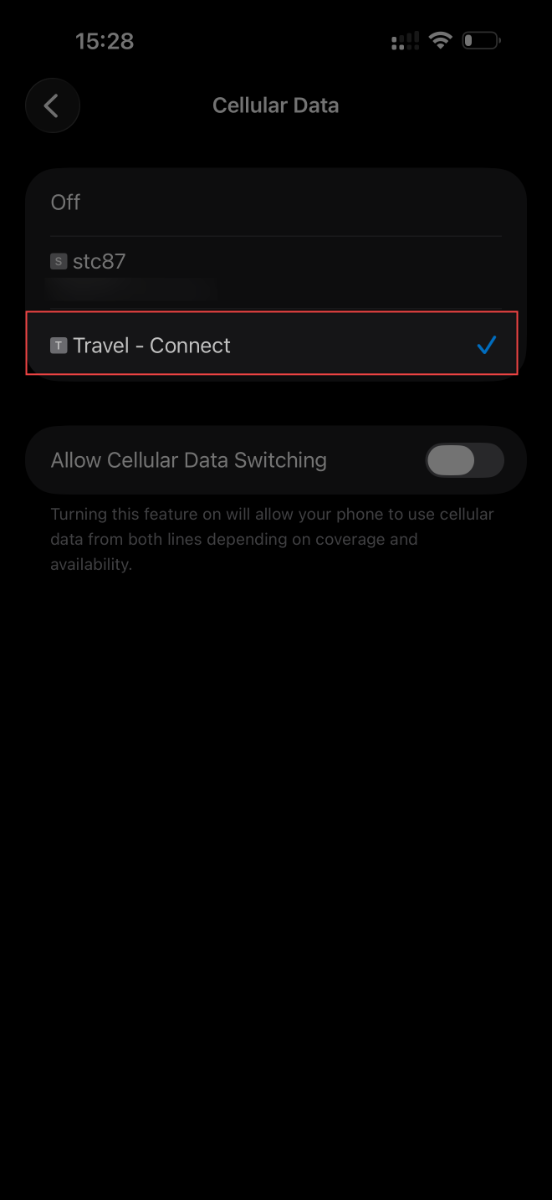
Once these steps are completed, everything will be ready, and your internet should work automatically as soon as you arrive in your destination country ✈️
We wish you a smooth setup and a wonderful trip.