
This guide explains how to manually install a DataFly eSIM on Android devices, starting with obtaining the eSIM details from the DataFly app, then completing the installation through the phone settings, and finally configuring the data settings to ensure the internet works properly.
Before you start, make sure you have:
A stable internet connection
An Android phone that supports eSIM and is not locked to a specific carrier
Your eSIM details: you’ll need either a QR code or an activation code (SM-DP+) from the DataFly app
Part 1: Get your eSIM details
Open the DataFly app.
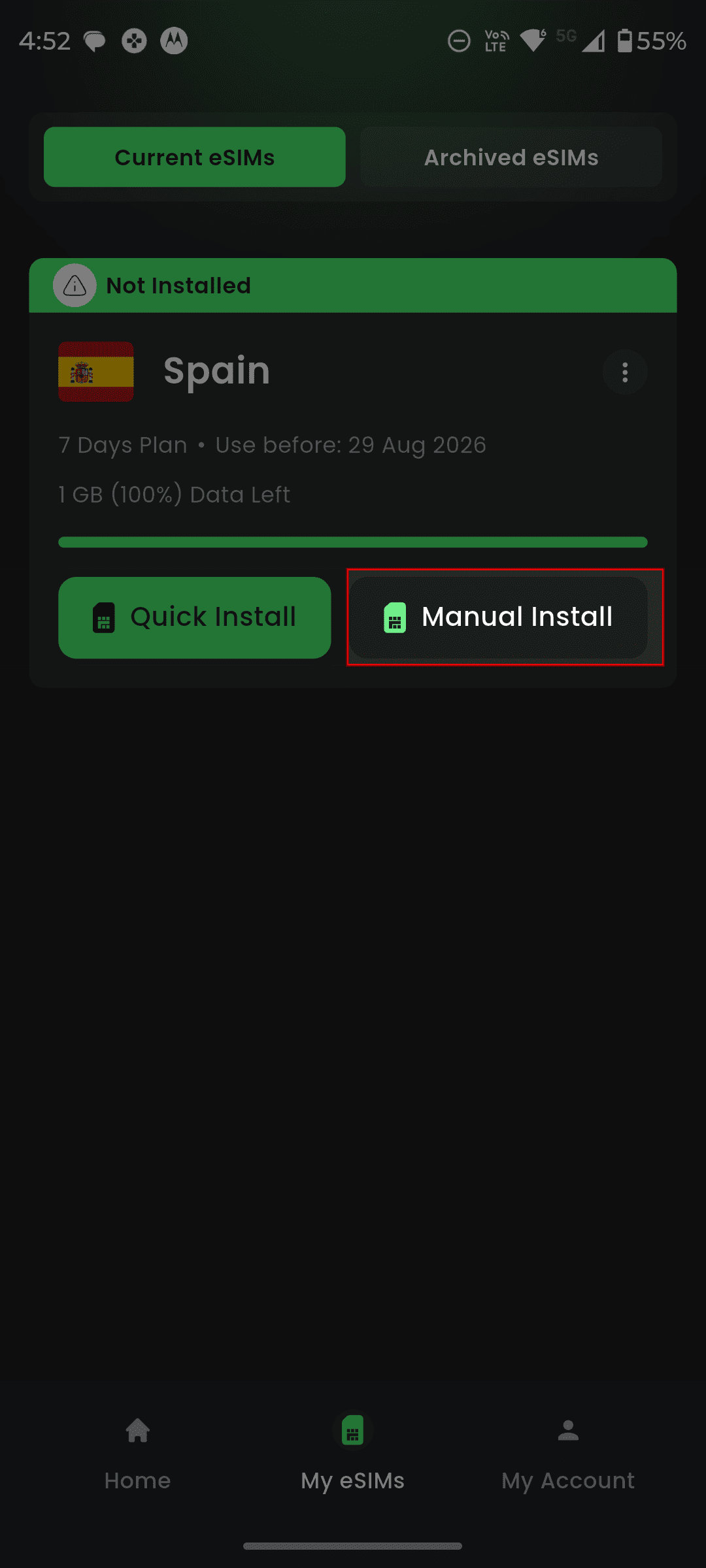
Tap "My eSIMs".
On your new eSIM, tap "Manual Install".
Choose one of the following options:
Tap the copy button to copy the activation code if you want to install your eSIM using the code.
Tap Share to save the QR code or share it (if you want to activate the eSIM using the QR code or share it with someone else so they can activate it on their device).
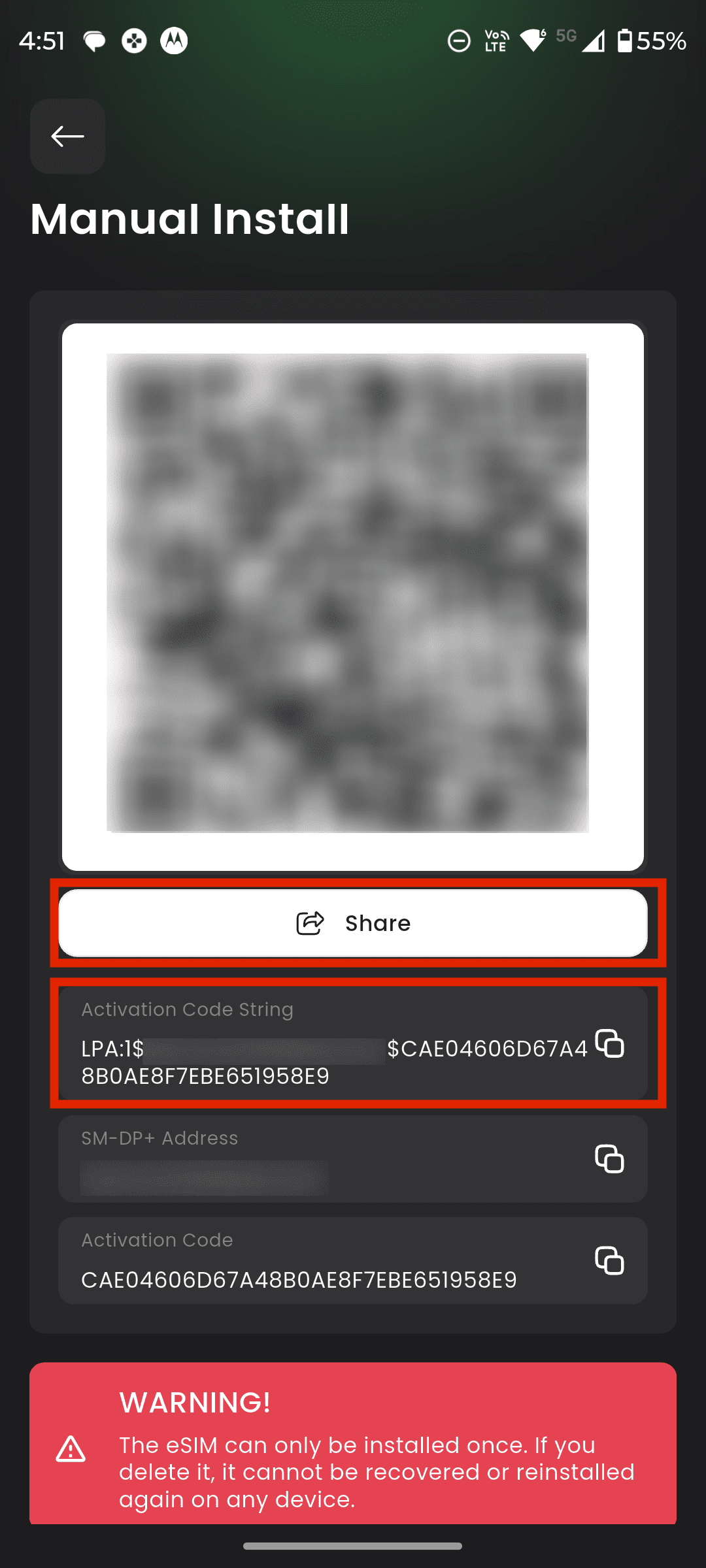
After copying the activation code or saving the QR code, continue to Part 2 to complete the installation on your Android phone.
Part 2: Manually install the eSIM
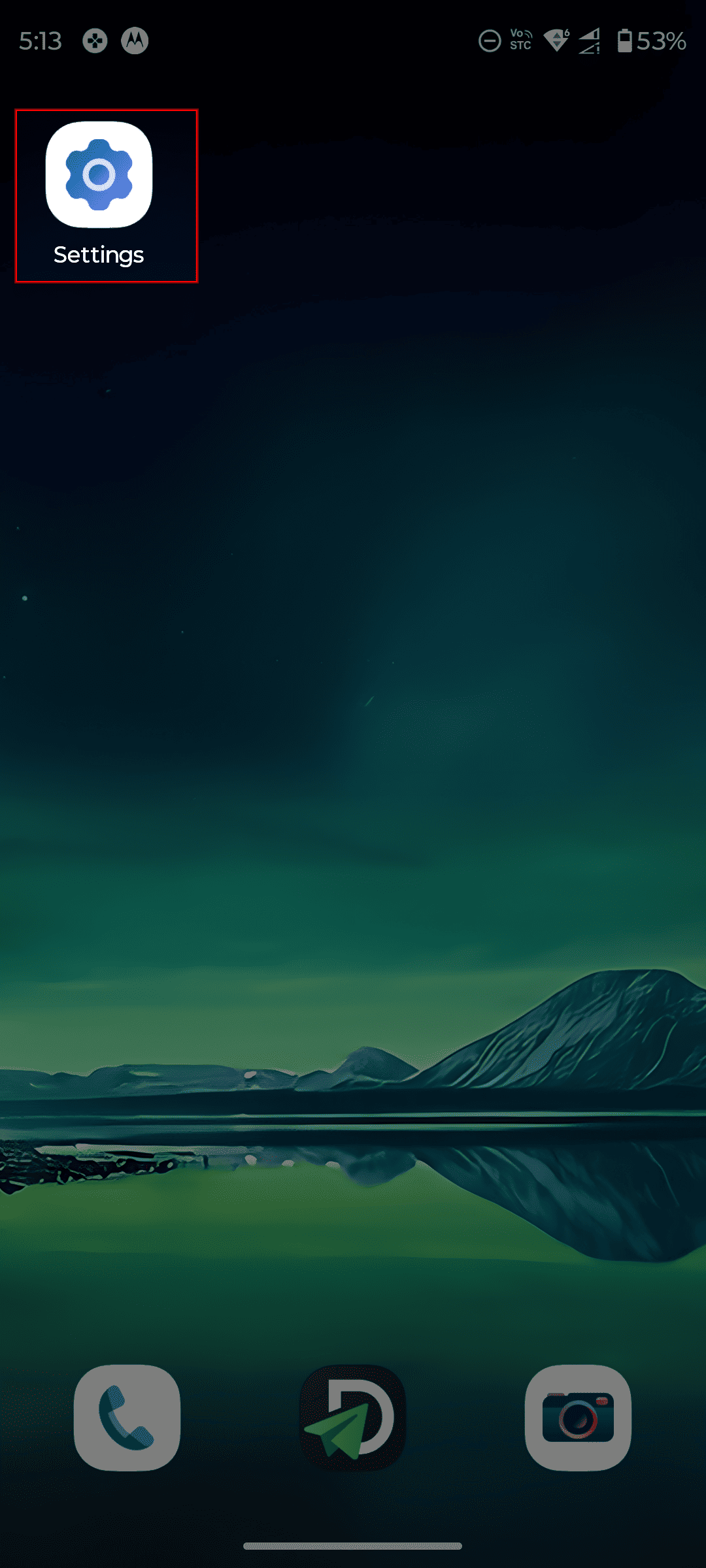
Open your phone Settings.
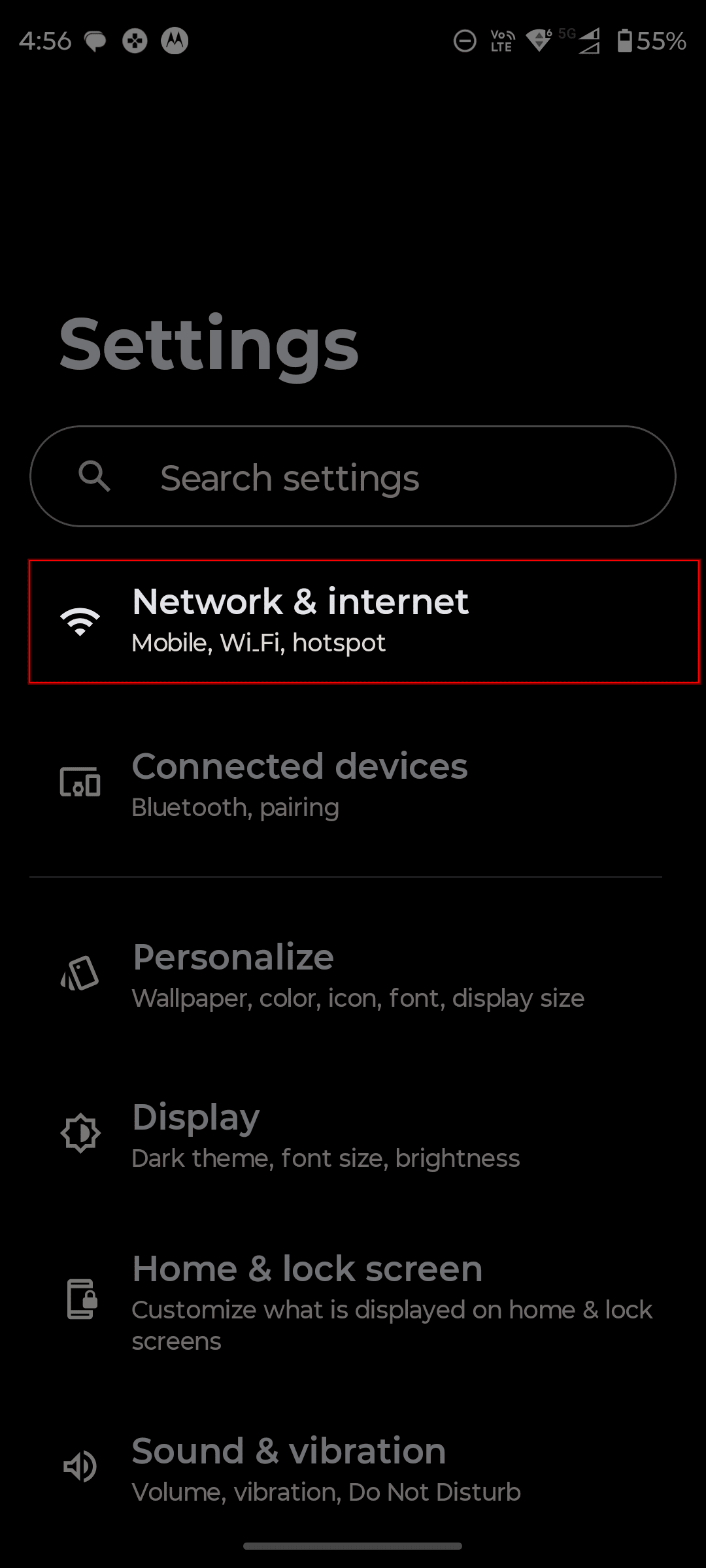
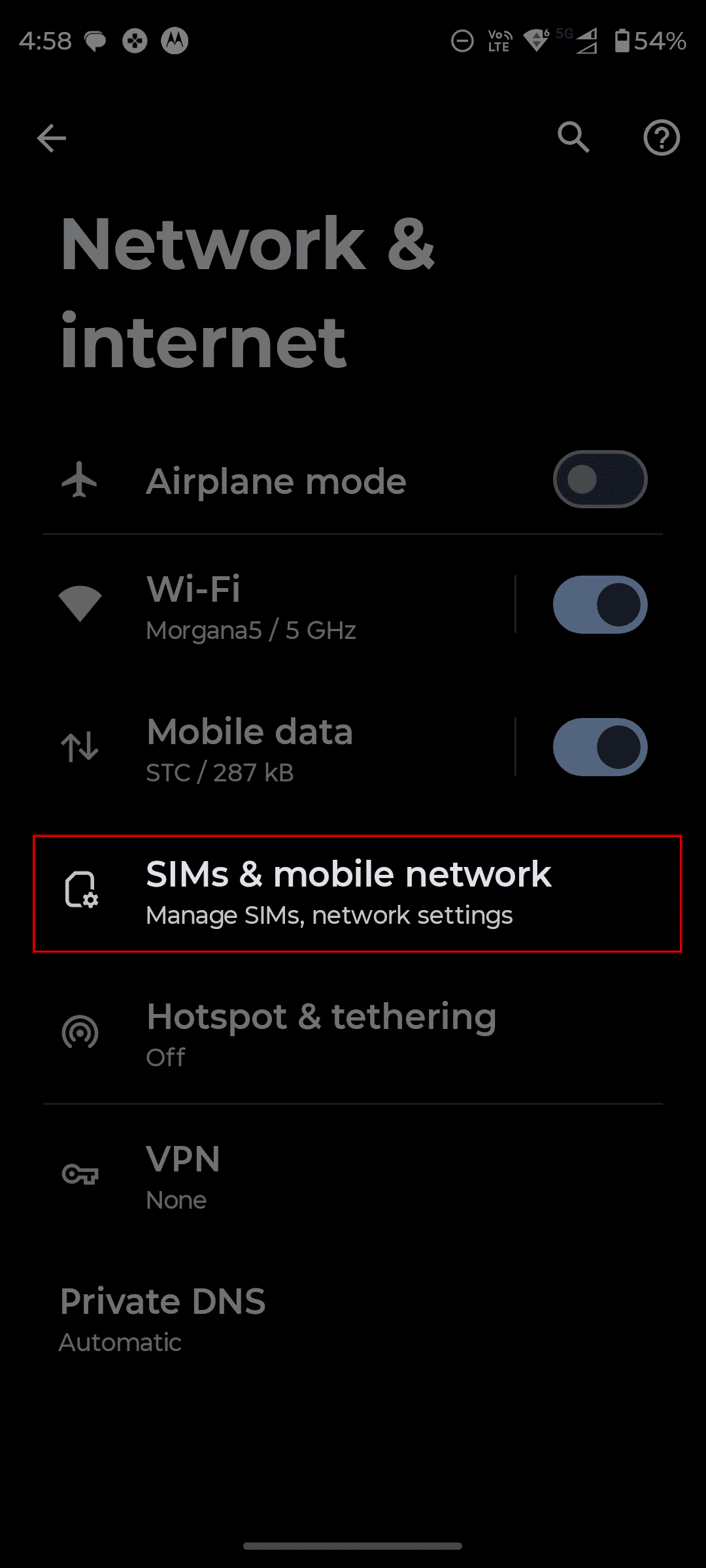
Tap "Network & internet".
Tap "SIMs & mobile network".
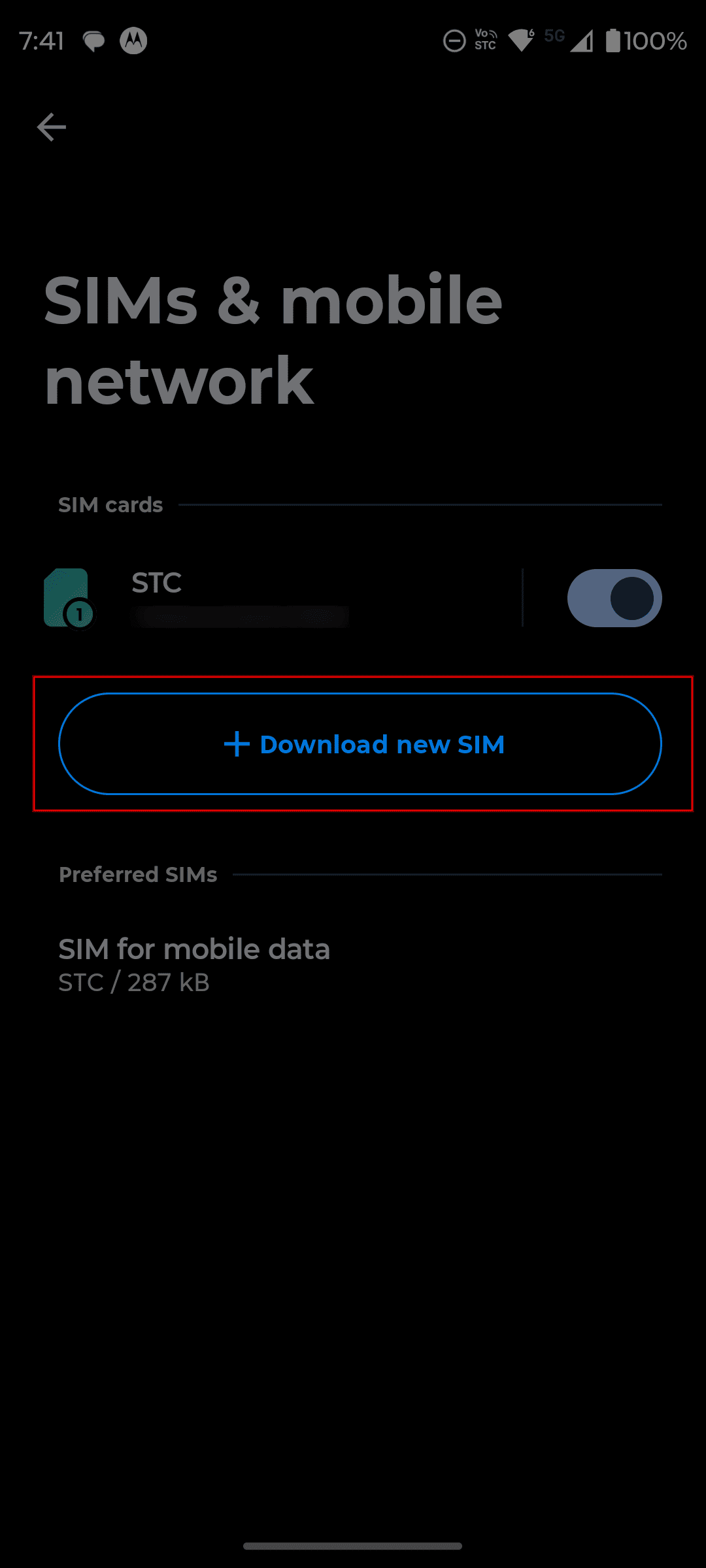
Tap "Download new SIM".
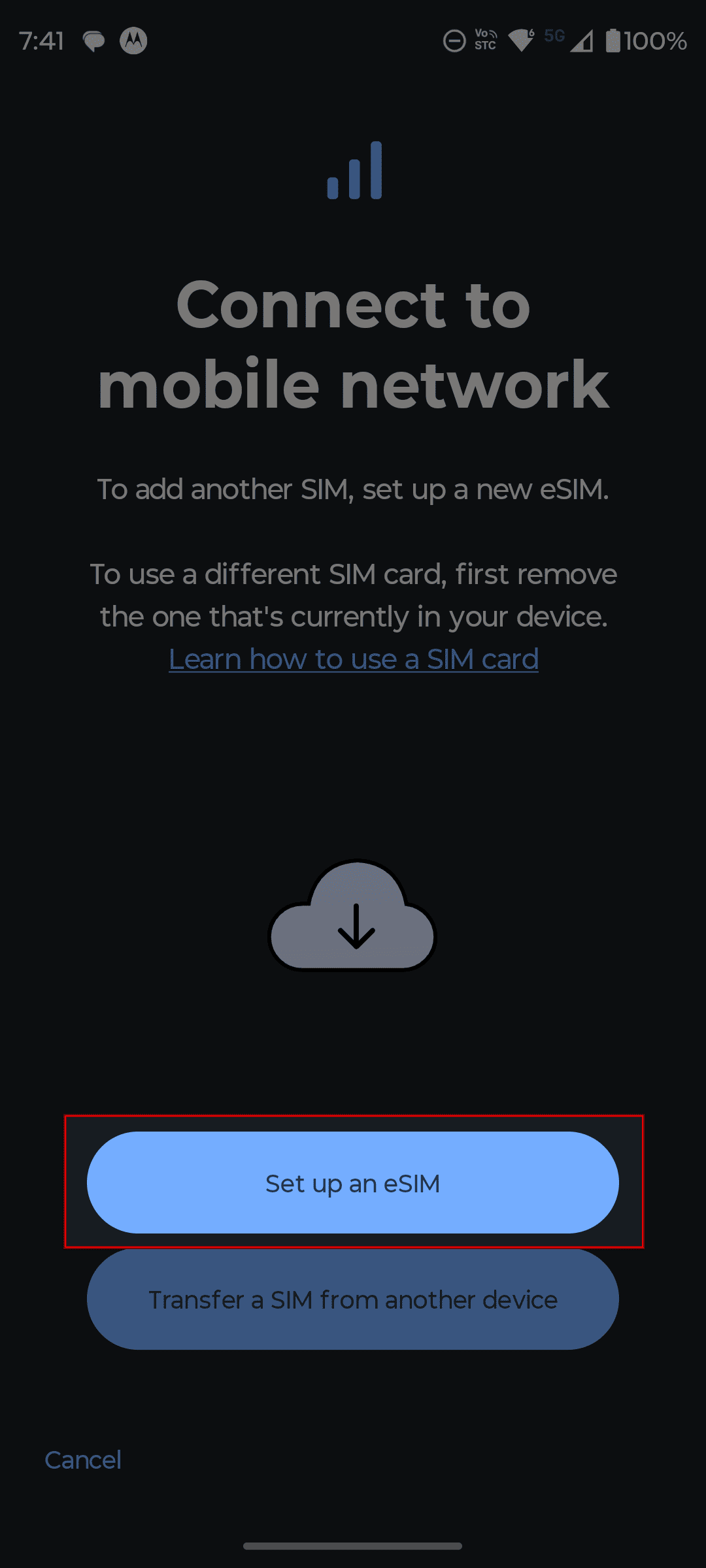
Tap "Set up an eSIM".
You’ll now see three options:
Option 1: Scan a QR code with the camera
Option 2: Select a QR code from your gallery
Option 3: Enter the activation code manually
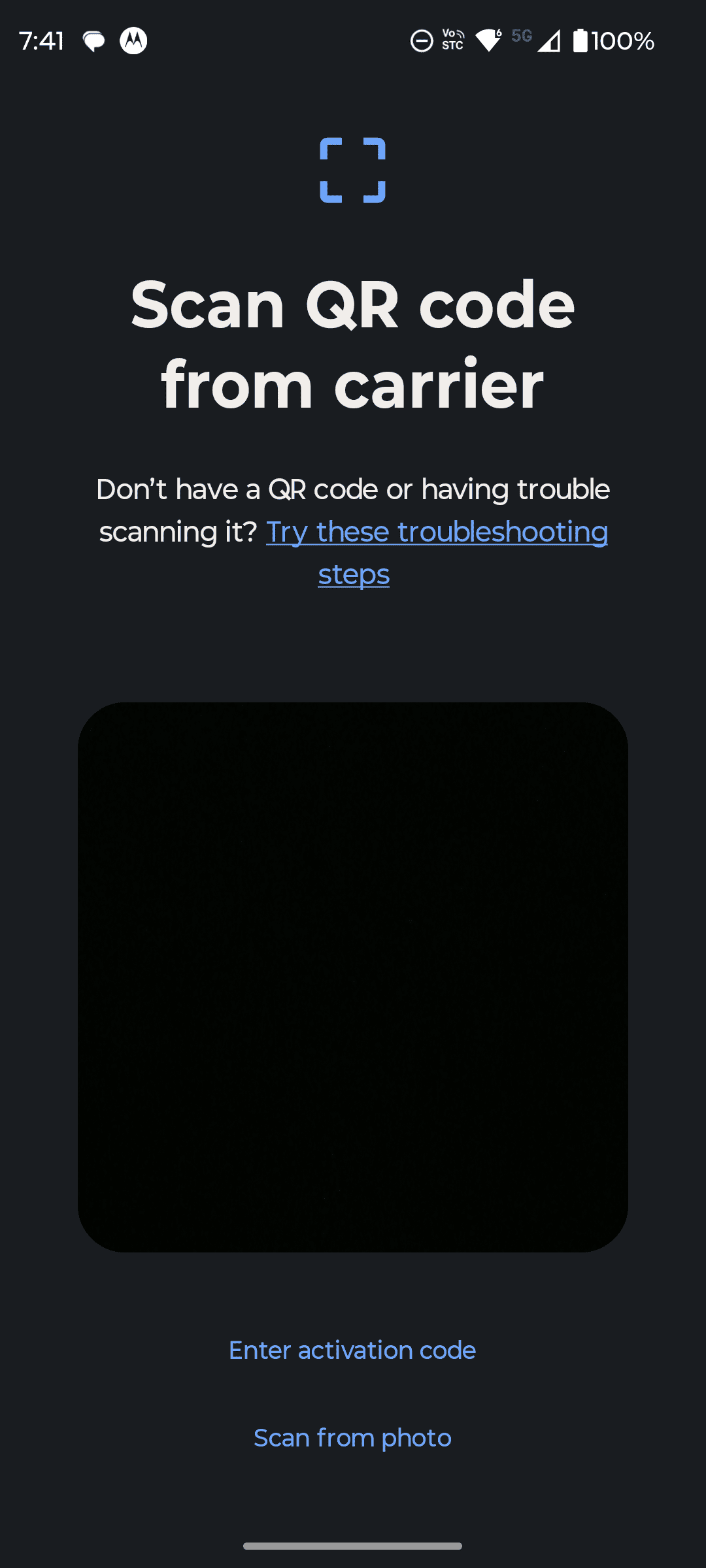
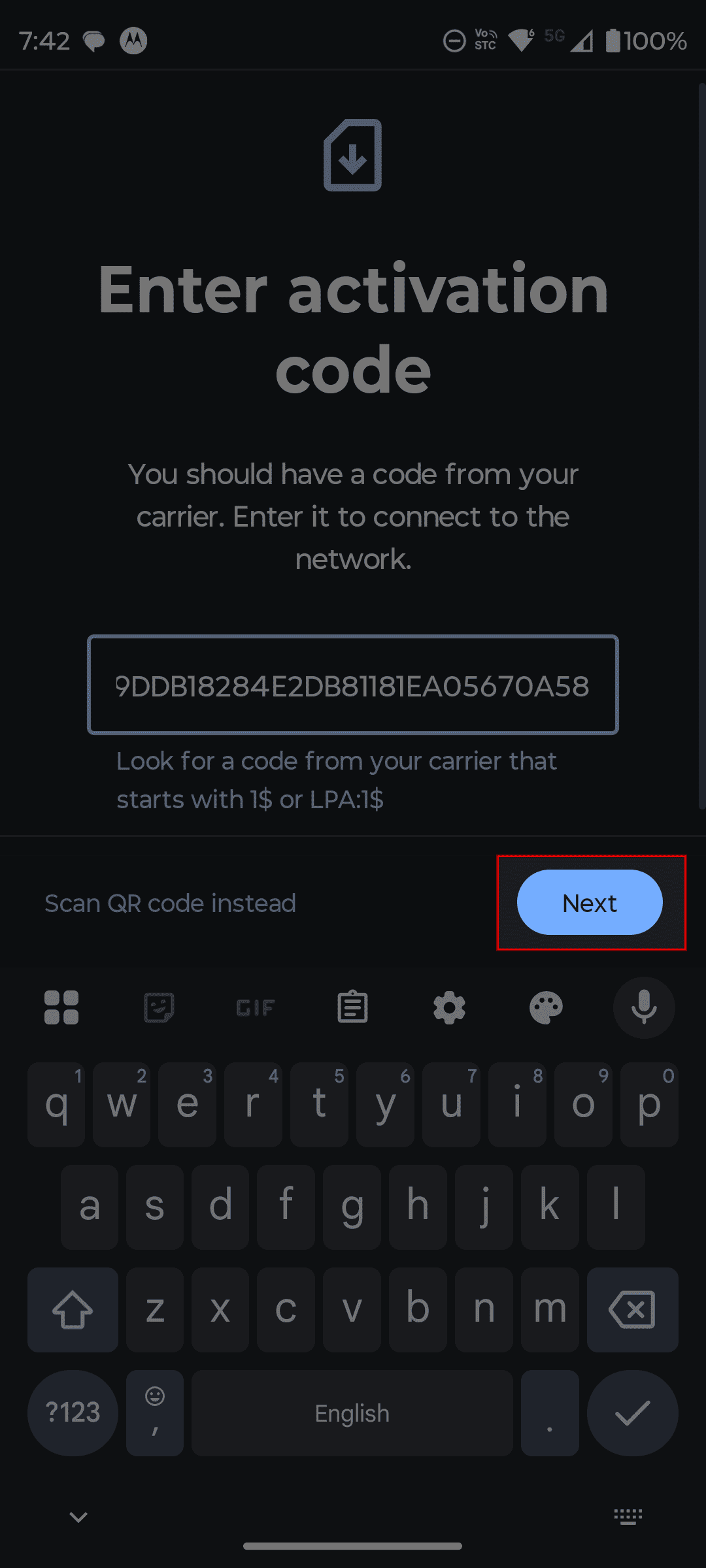
Paste or type the activation code, then tap "Next".
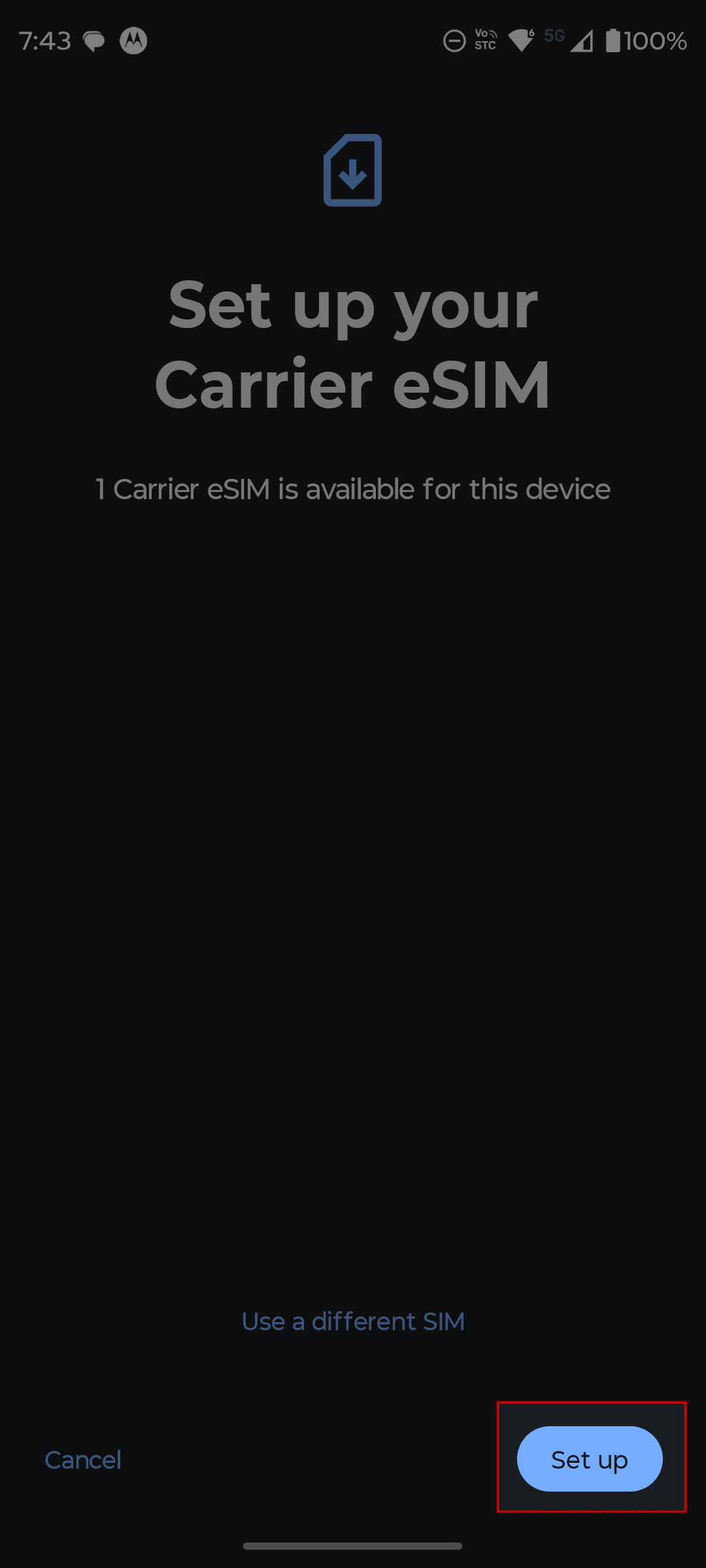
To complete the installation, tap "Set up" and wait a few seconds for the eSIM to finish installing.
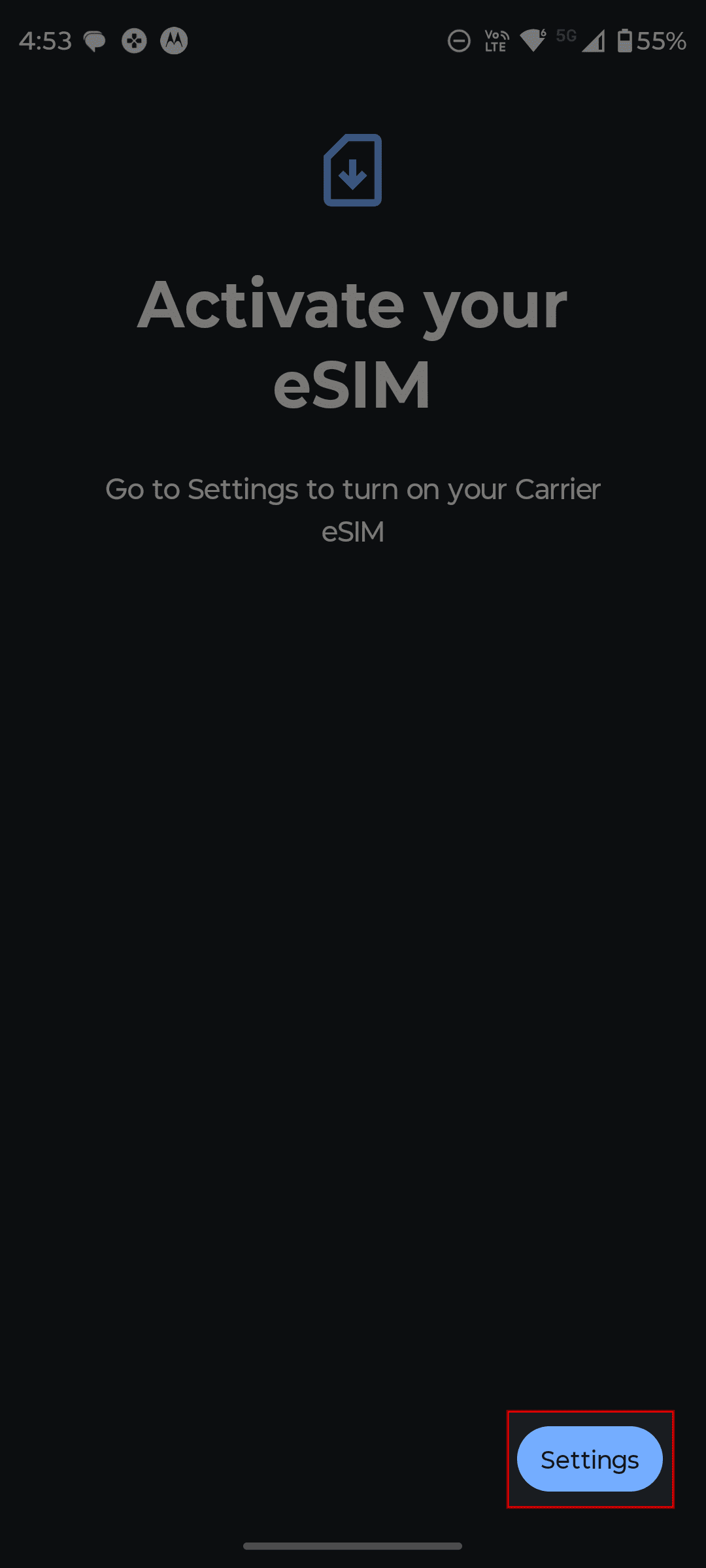
Once installation is complete, you’ll see the "Activate your eSIM" screen. Tap "Settings" to go to your SIM settings and turn the eSIM on from there.
Turn the eSIM on by toggling the switch.
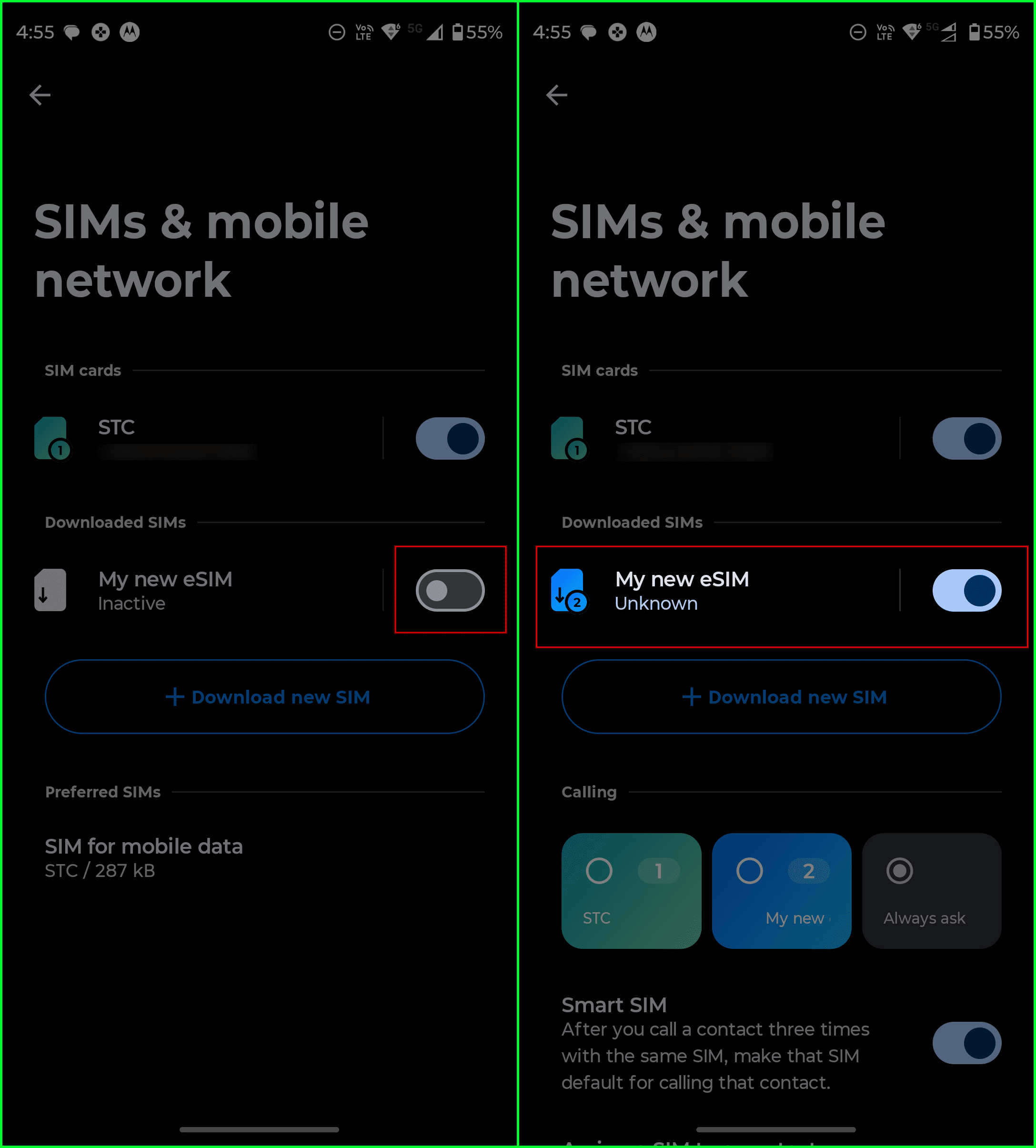
After successfully installing and turning on the eSIM, there are two important remaining steps to make mobile data work correctly:
Enable data roaming
Set the new eSIM as your mobile data line
Please follow the steps in Part 3 below.
Part 3: Enable data roaming and set the eSIM as your mobile data line
Go back to the main Settings screen on your phone.
Tap "Network & internet".
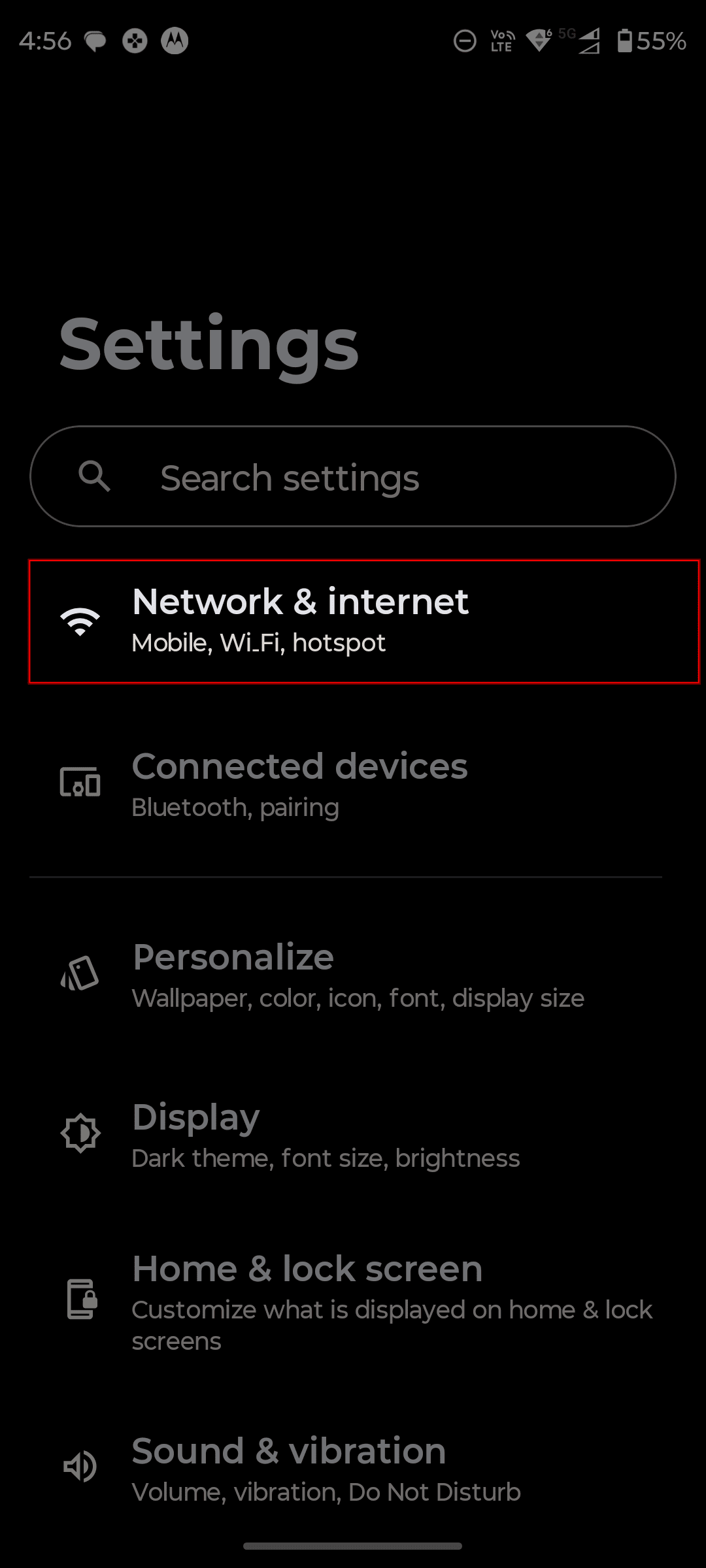
Tap "Mobile data".
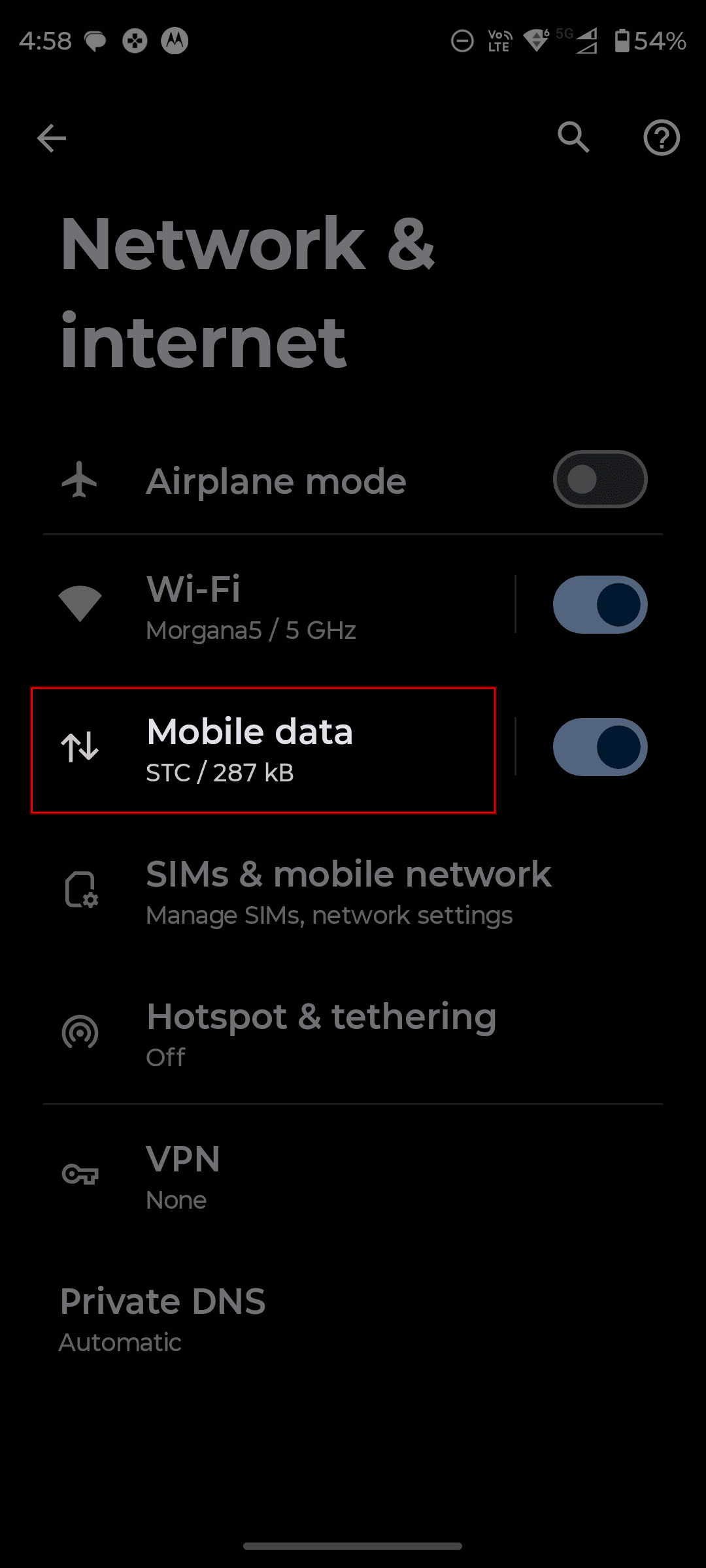
Turn on "Use mobile data", then select the new eSIM you just installed as the preferred line for mobile data.
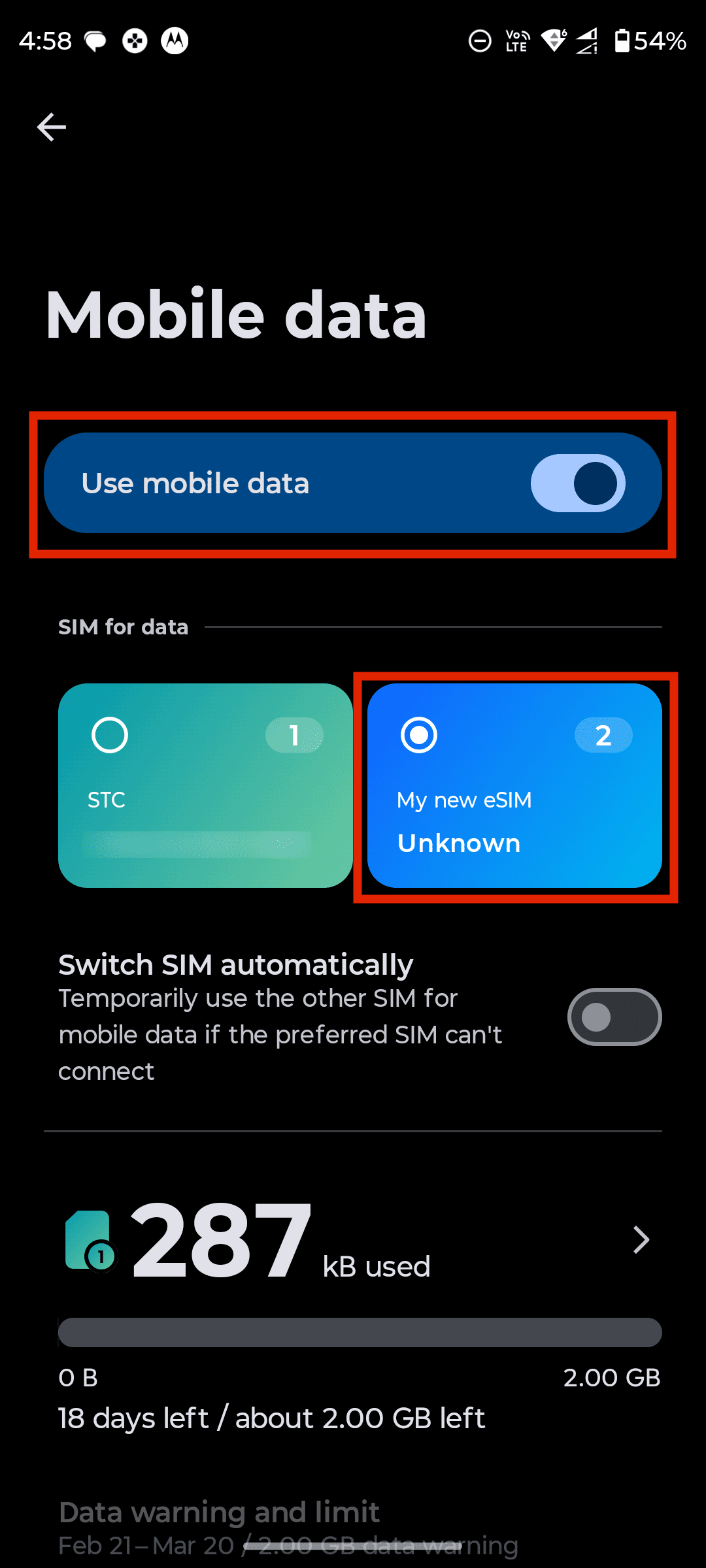
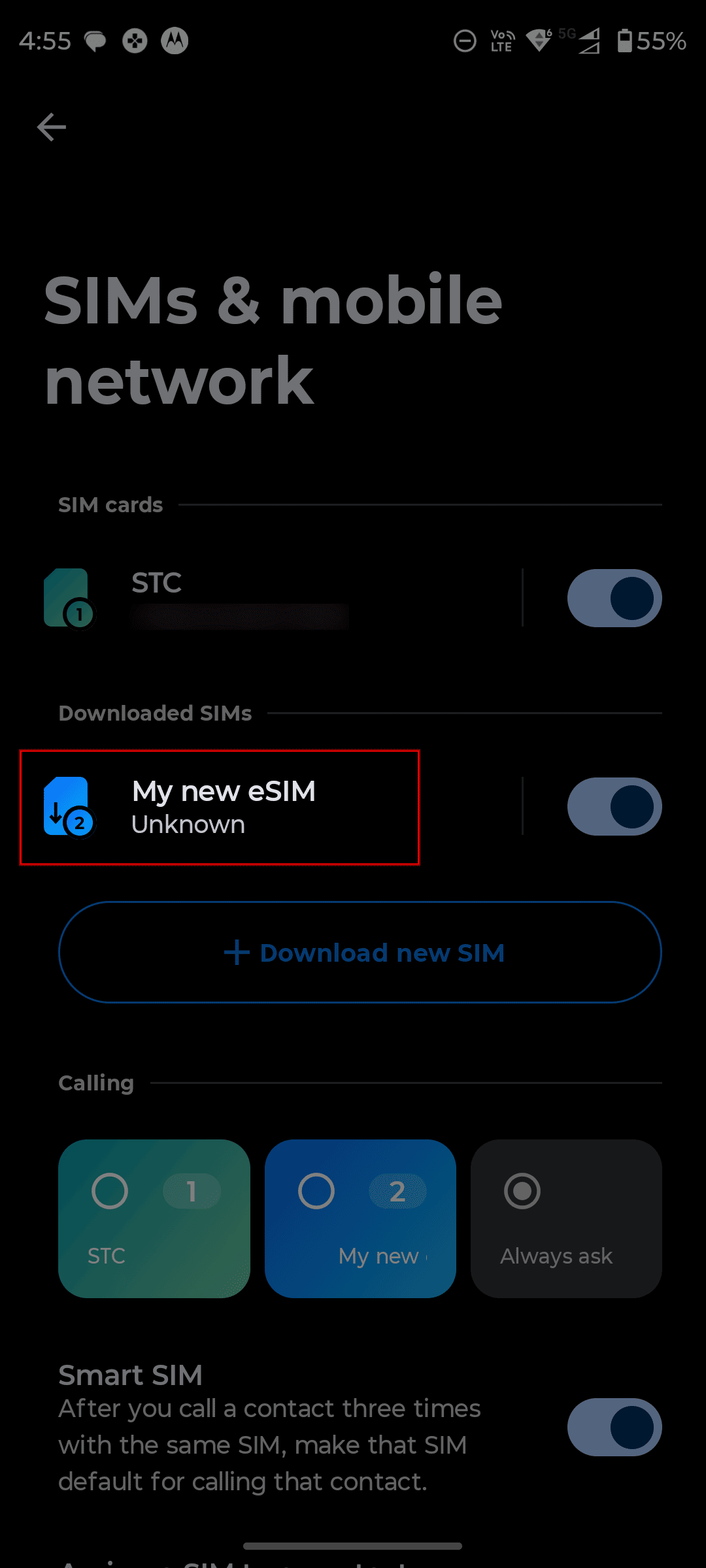
Now, exit the Mobile data screen to go back to "Network & internet", then tap "SIMs & mobile network".
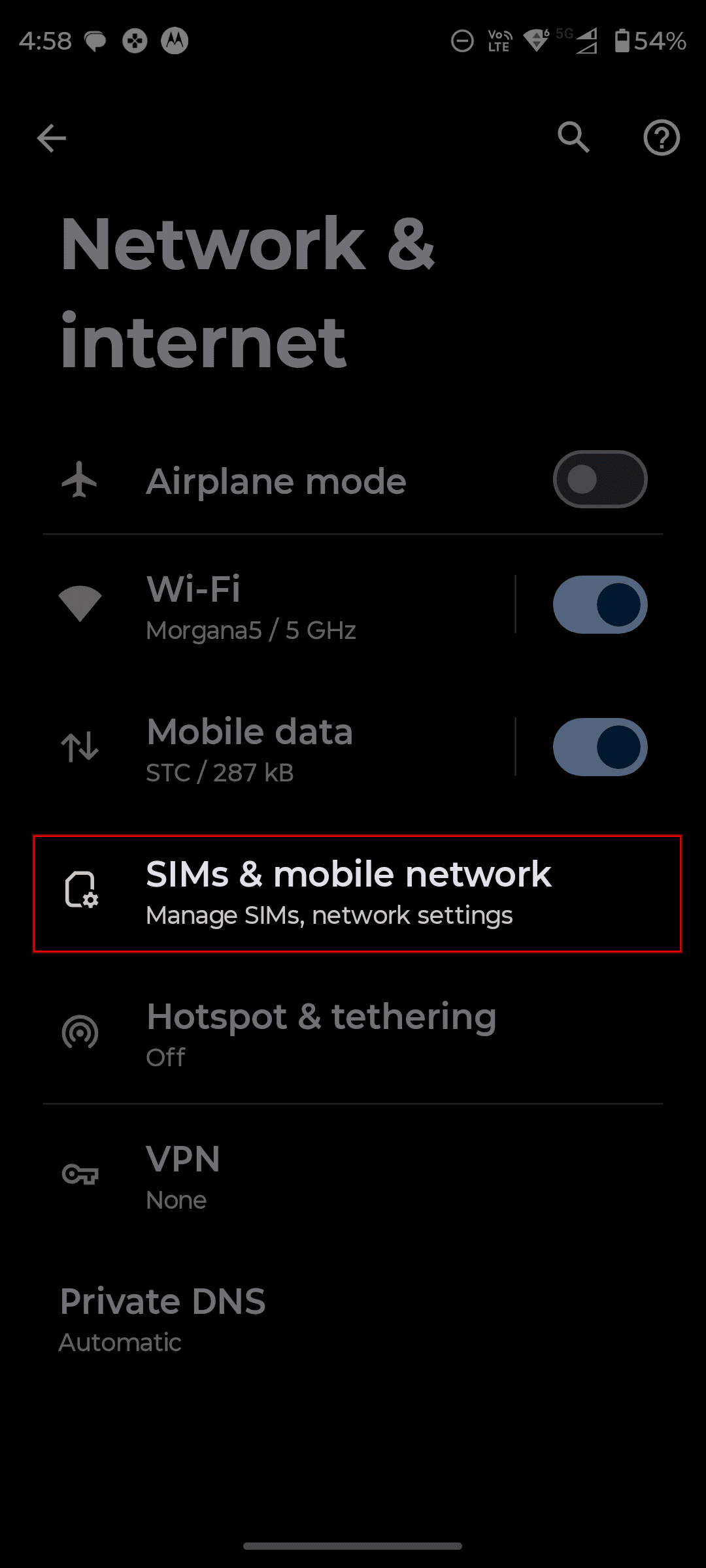
Tap your new DataFly eSIM in the area highlighted in red in the screenshot.
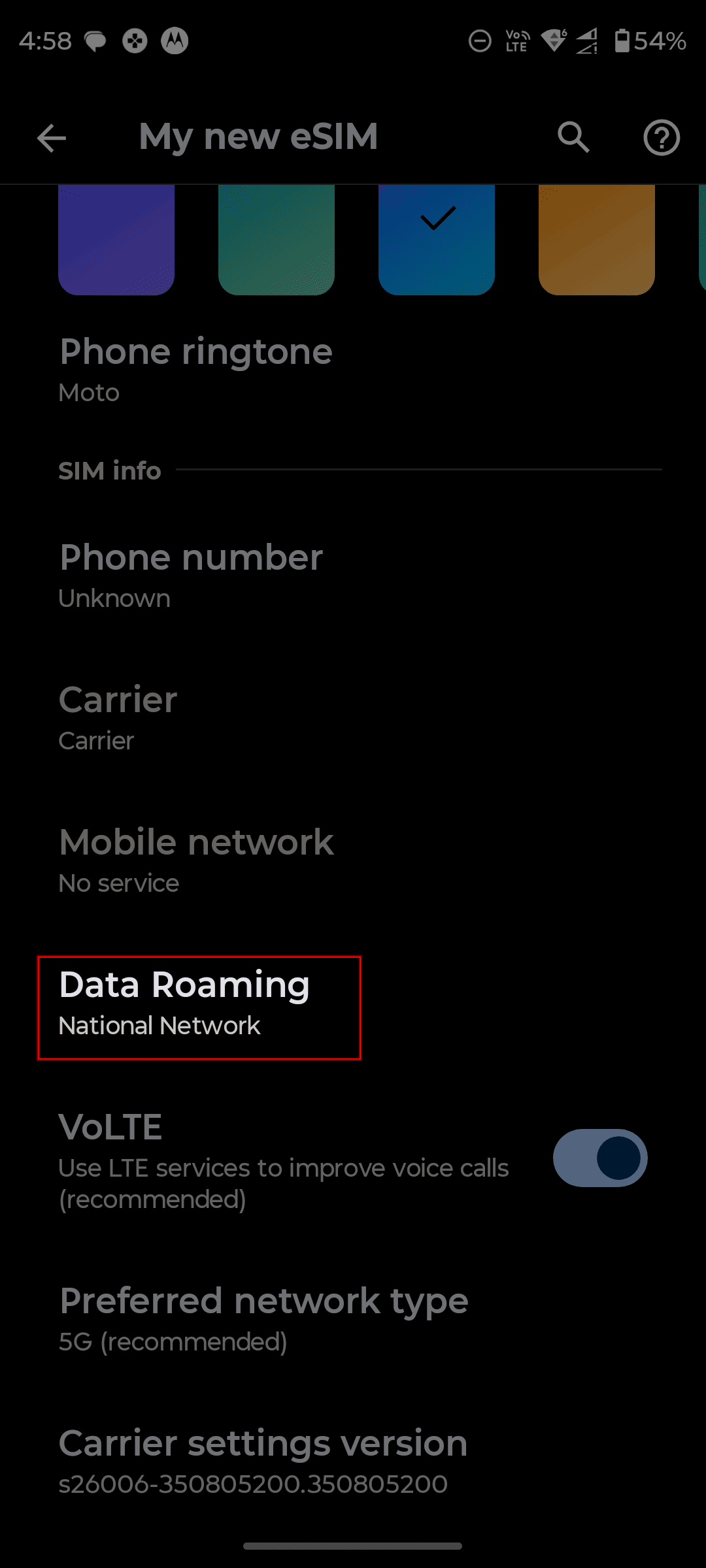
Scroll down slightly and tap "Data Roaming".
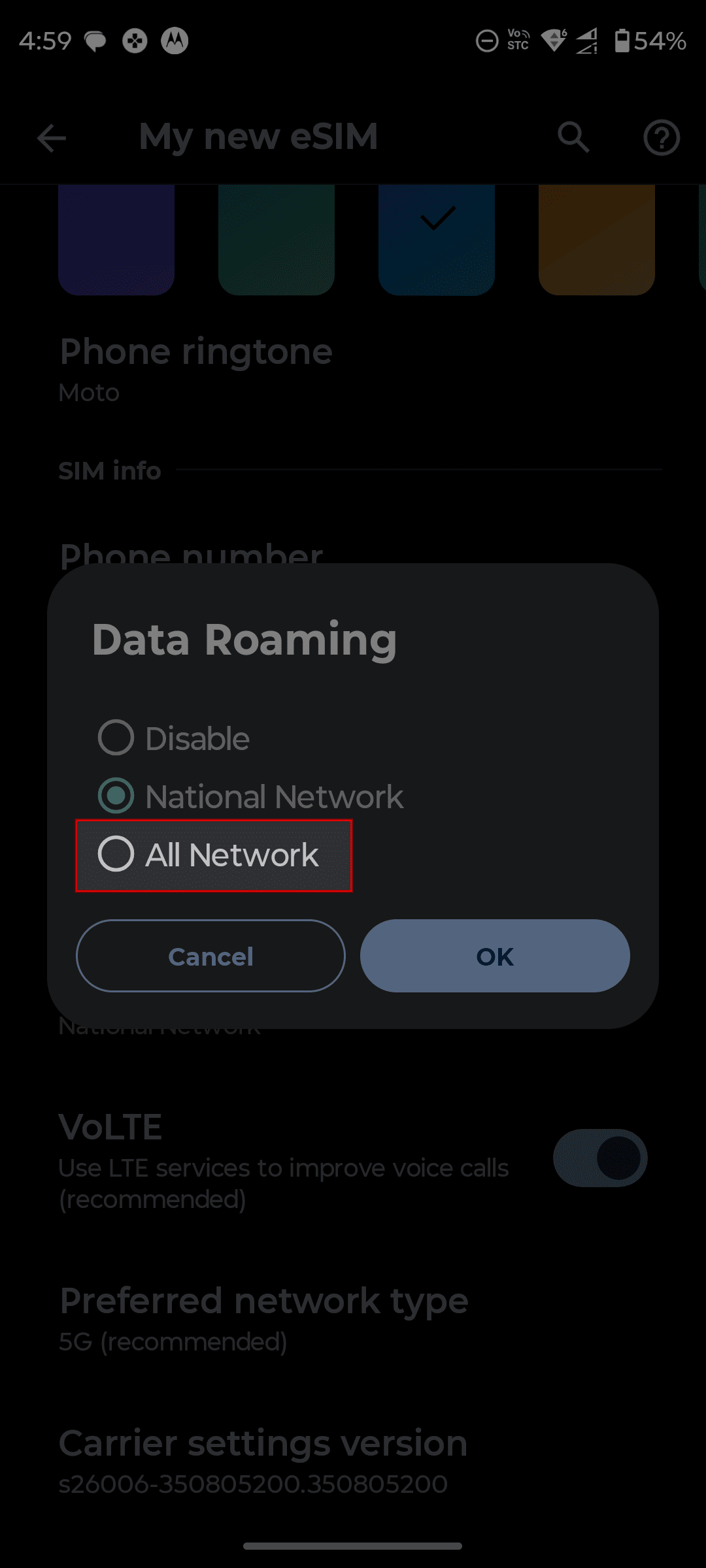
Select "All network".
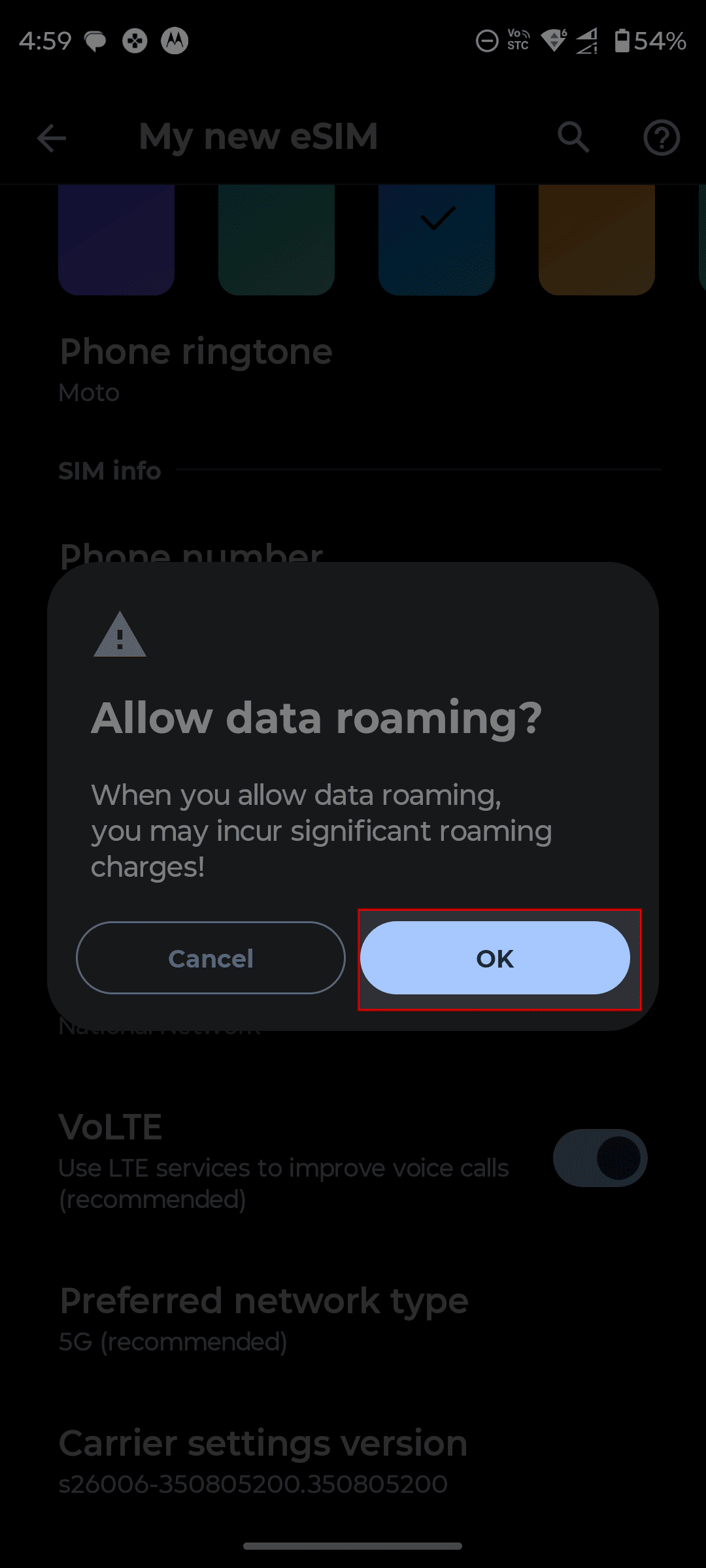
A warning will appear before enabling data roaming. Tap "OK".
Once you’ve completed all the steps in Part 1, Part 2, and Part 3, you’re all set ✅
Have a great trip! ✈️