
Welcome! This guide is specifically for Samsung Galaxy phones and explains how to activate your new eSIM using the Quick Install feature in the DataFly app. It only takes a few minutes, and we’ll also help you confirm the most important setting: Data Roaming.
Step-by-step: Quick Install activation
Open the DataFly app.
Tap My eSIMs.
Next to your new eSIM, tap Quick Install.
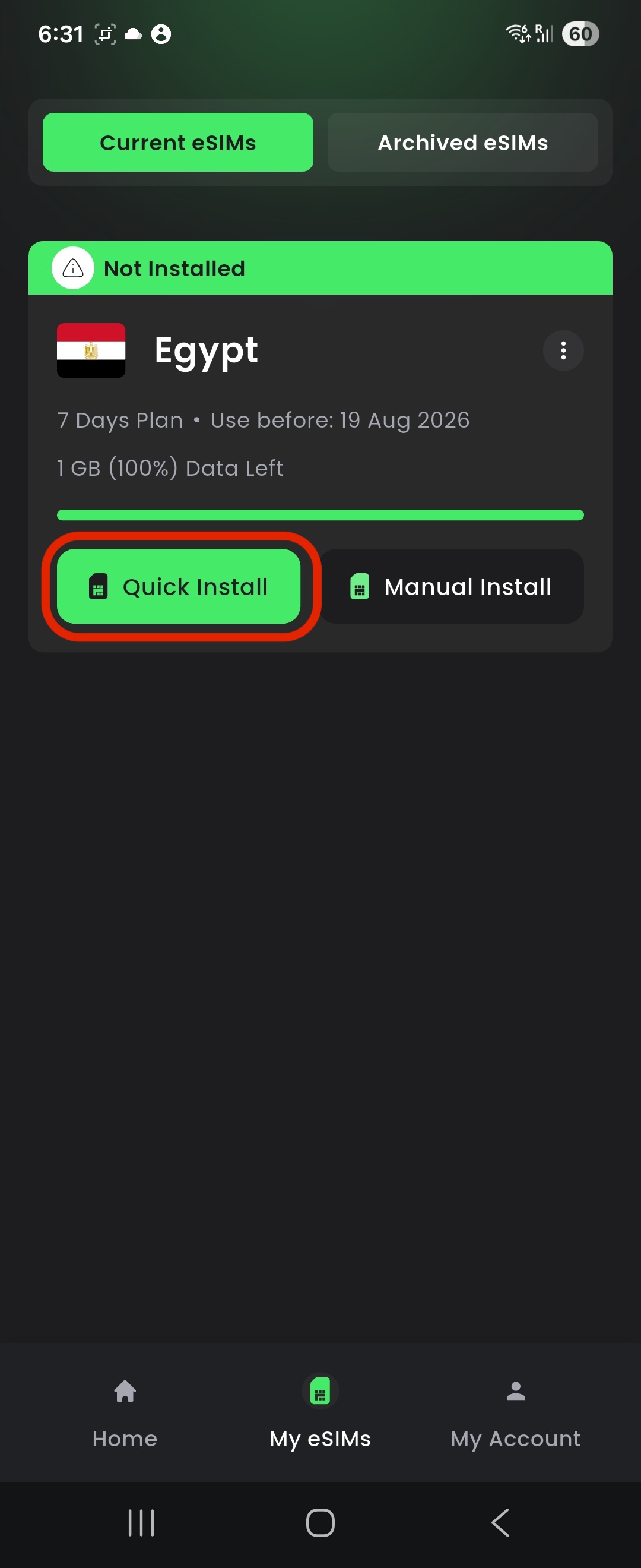
A window titled “Setup your eSIM” will appear — tap Setup.
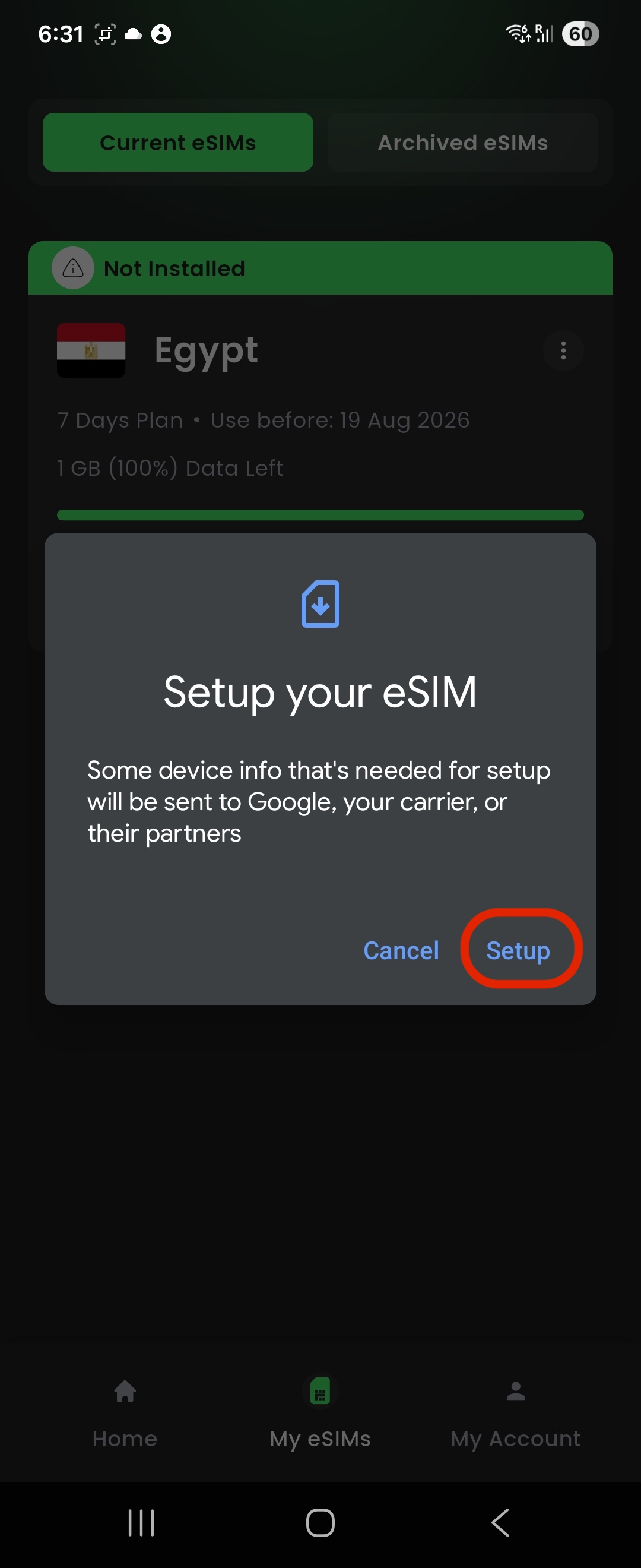
You’ll be taken outside the app to your phone’s system settings to confirm adding the eSIM — tap Add.
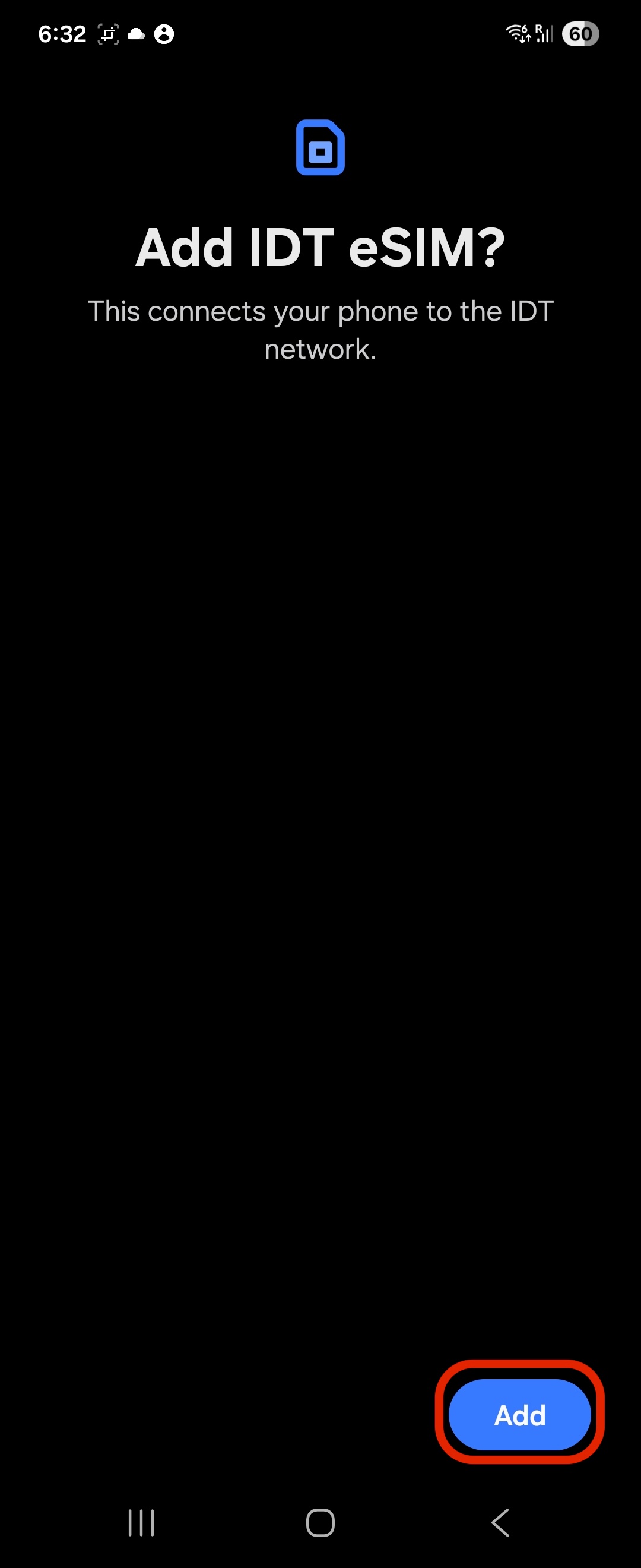
After tapping Add, the installation will begin.
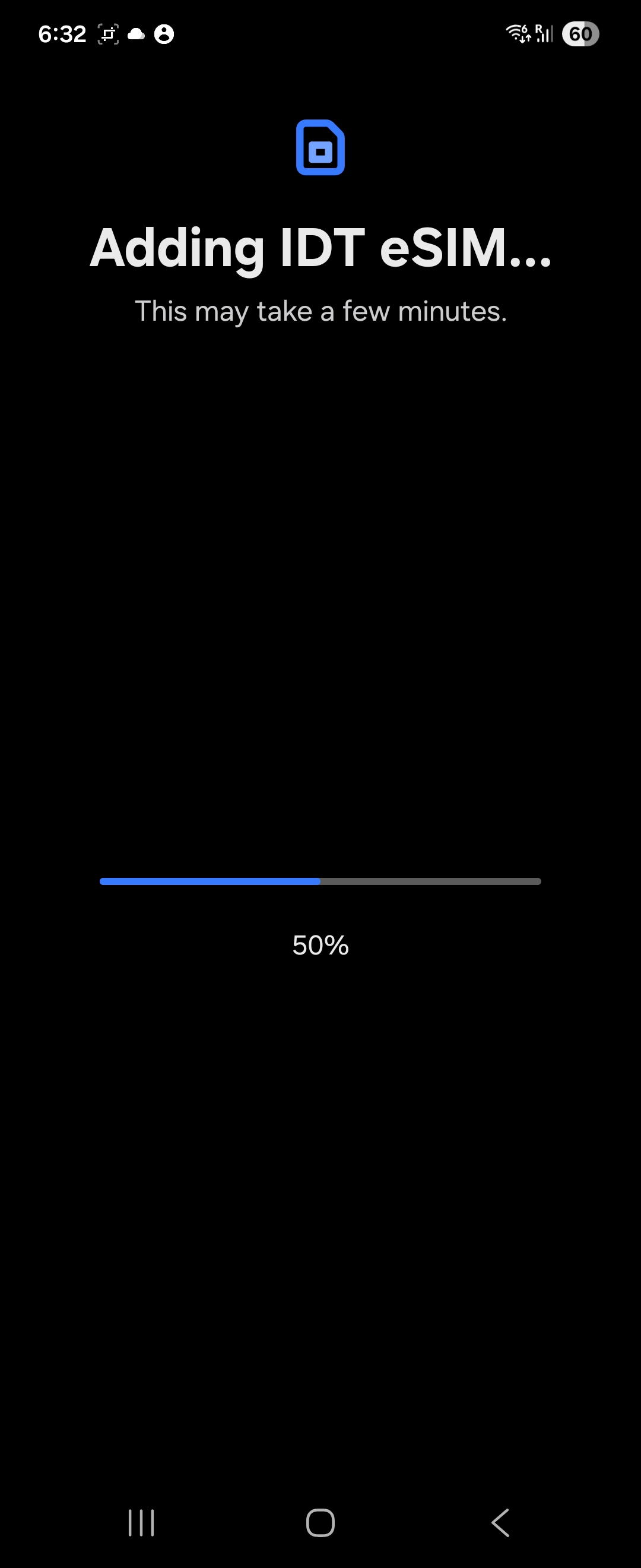
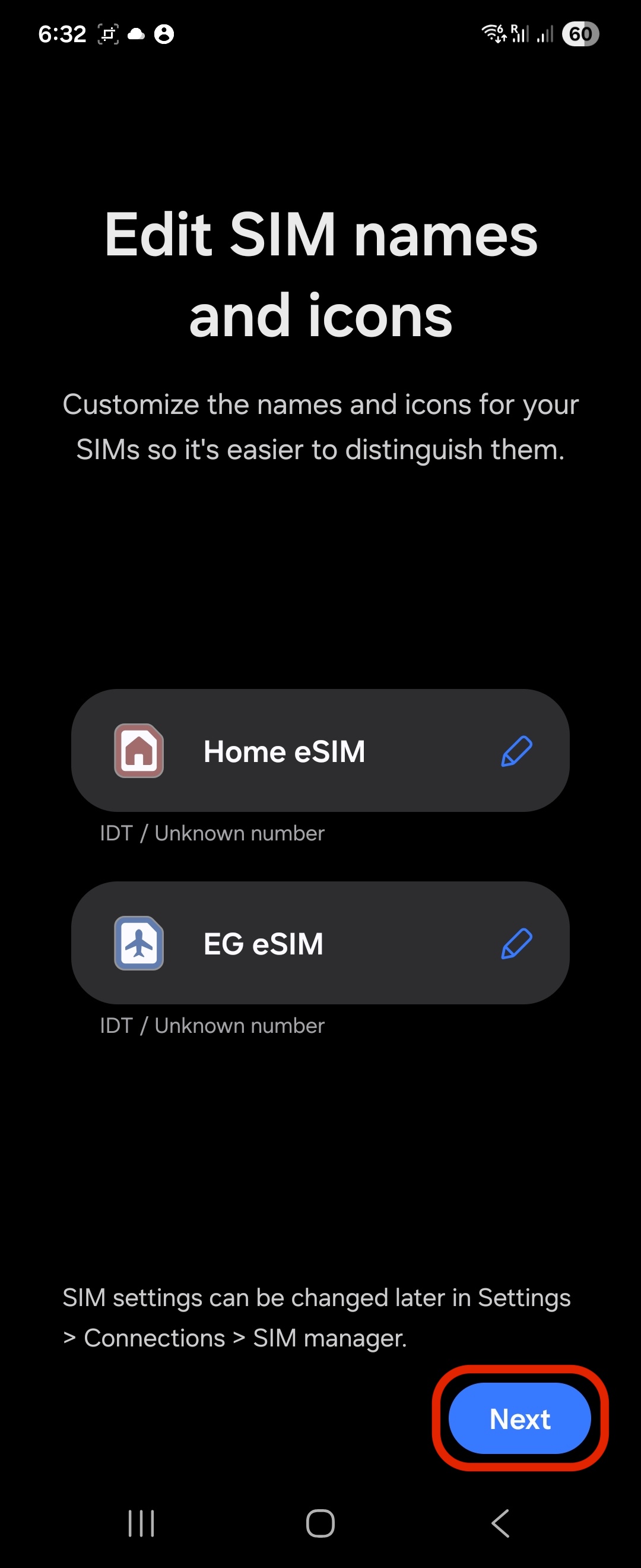
When installation succeeds, you’ll see “Edit SIM names and icons”.
You can optionally rename the new eSIM to recognize it later (recommended).
Example name: “EG eSIM”
Whether you rename it or not, tap Next to continue.
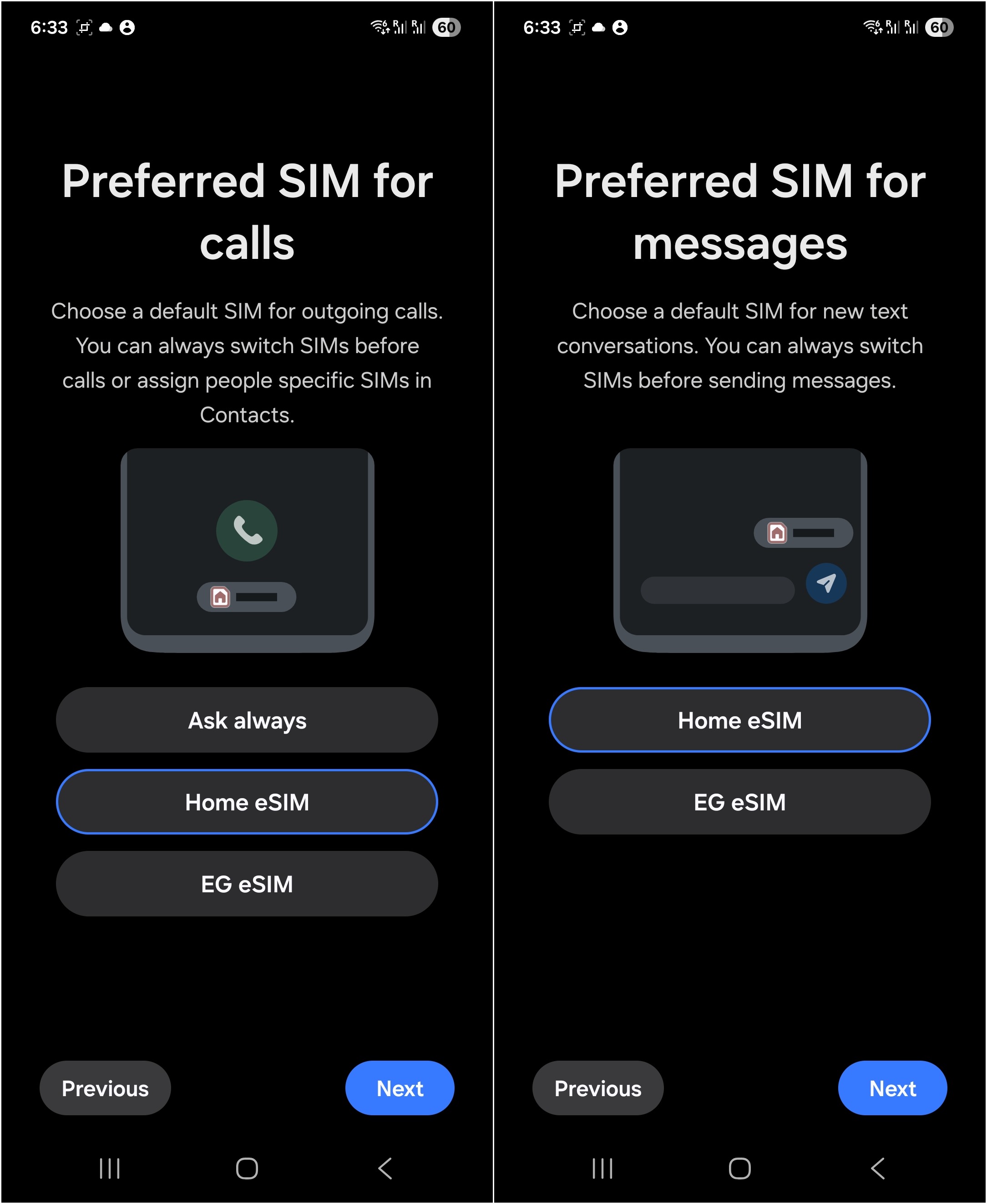
Your phone will ask you to choose the preferred SIM for Calls and Messages.
Select your primary/national SIM (not the new DataFly eSIM) to make sure calls and SMS keep reaching you normally.
-
ℹ️ Note
SIM names may differ depending on your device or your custom labels—choose carefully.
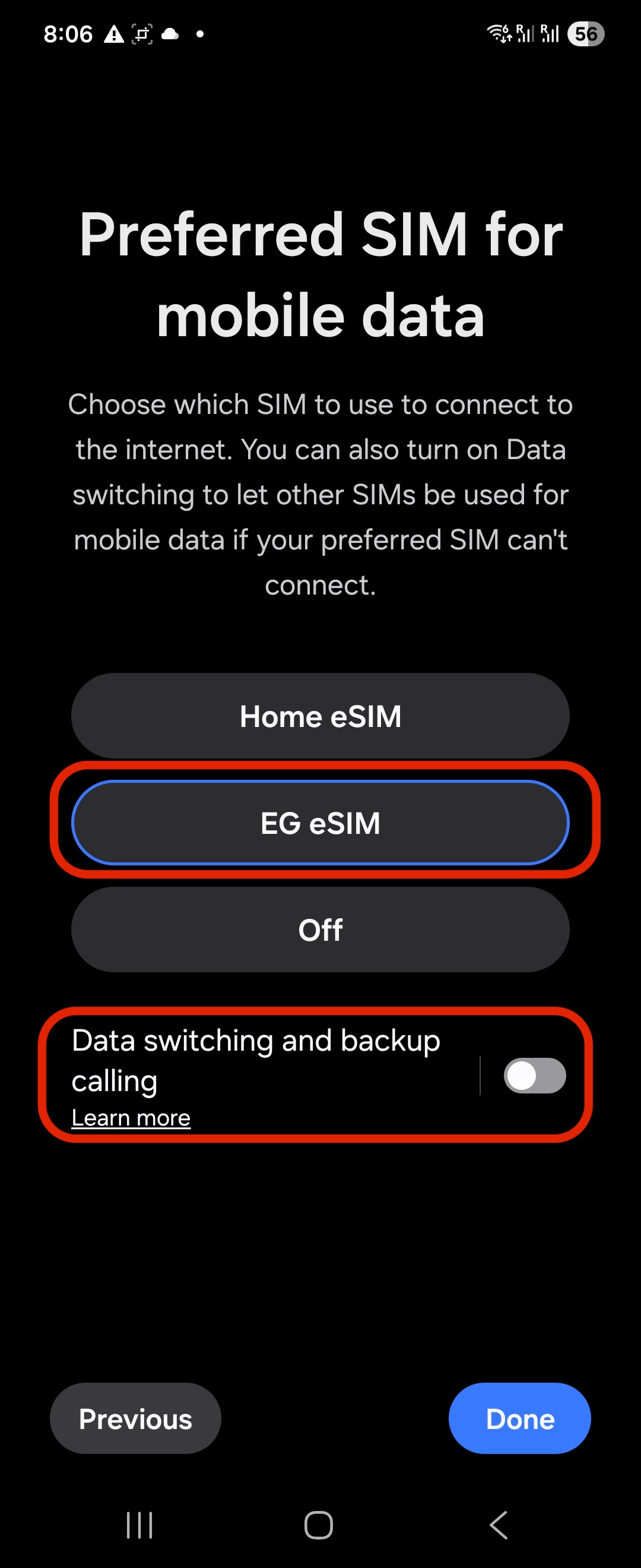
Next, your phone will ask you to choose the preferred SIM for Mobile Data.
Select your new DataFly eSIM for mobile data.
We also recommend turning off “Data switching and backup calling” if you don’t need it.
Tap Done when finished.
Open the DataFly app.
Tap My eSIMs.
Next to your new eSIM, tap Quick Install.
A window titled “Setup your eSIM” will appear — tap Setup.
You’ll be taken outside the app to your phone’s system settings to confirm adding the eSIM — tap Add.
After tapping Add, the installation will begin.
When installation succeeds, you’ll see “Edit SIM names and icons”.
You can optionally rename the new eSIM to recognize it later (recommended).
Example name: “EG eSIM”
Whether you rename it or not, tap Next to continue.
Your phone will ask you to choose the preferred SIM for Calls and Messages.
Select your primary/national SIM (not the new DataFly eSIM) to make sure calls and SMS keep reaching you normally.
- ℹ️ NoteSIM names may differ depending on your device or your custom labels—choose carefully.
Next, your phone will ask you to choose the preferred SIM for Mobile Data.
Select your new DataFly eSIM for mobile data.
We also recommend turning off “Data switching and backup calling” if you don’t need it.
Tap Done when finished.
✅ Congratulations! Your eSIM is installed.
Final (very important): Turn ON Data Roaming for the DataFly eSIM (Samsung)
Without Data Roaming, your travel eSIM data may not work. At the same time, you should turn OFF roaming for your primary/national SIM to avoid unexpected charges from your home carrier.
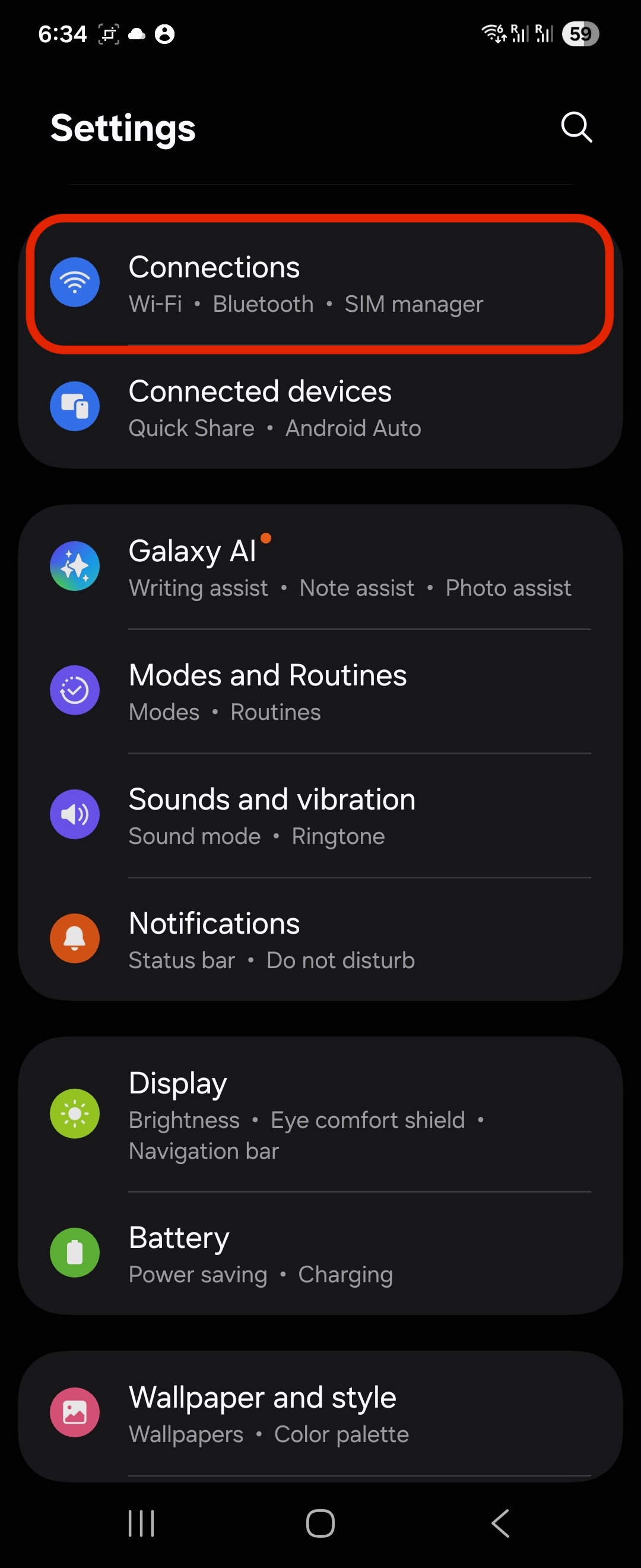
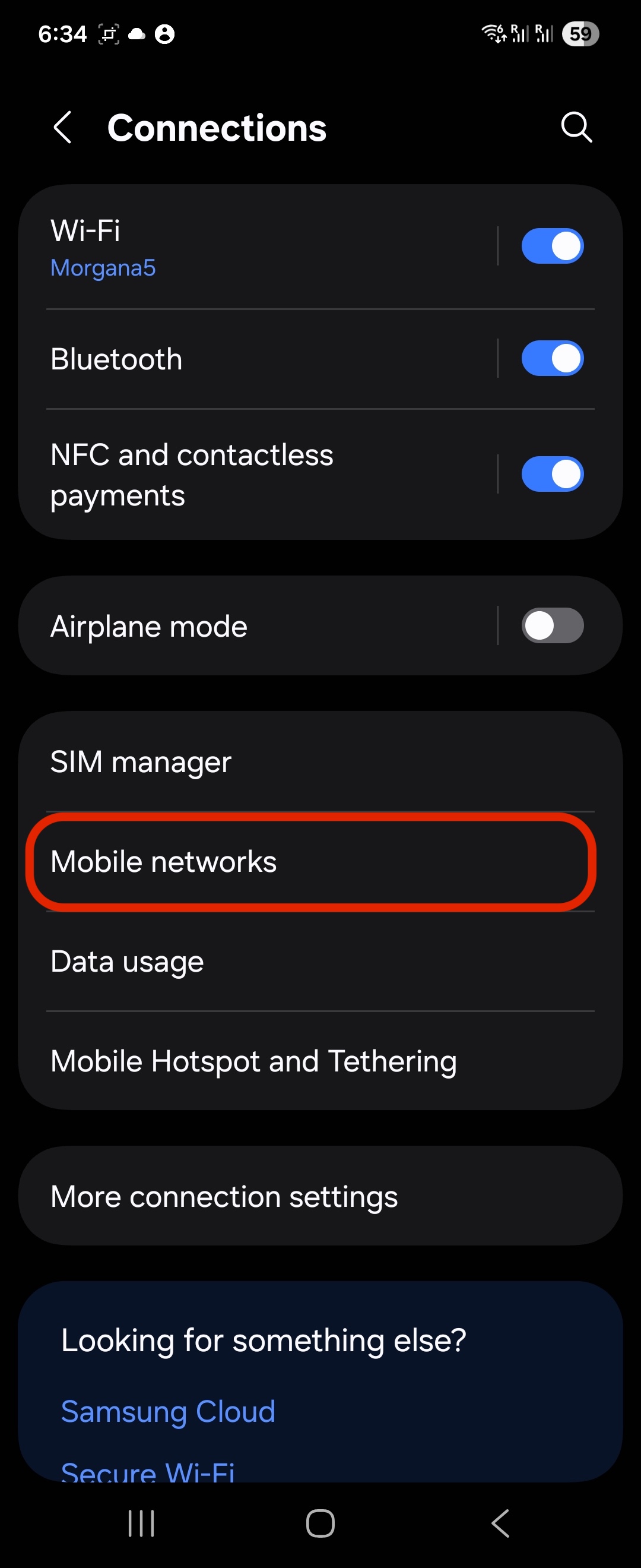
Open Settings.
Tap Connections.
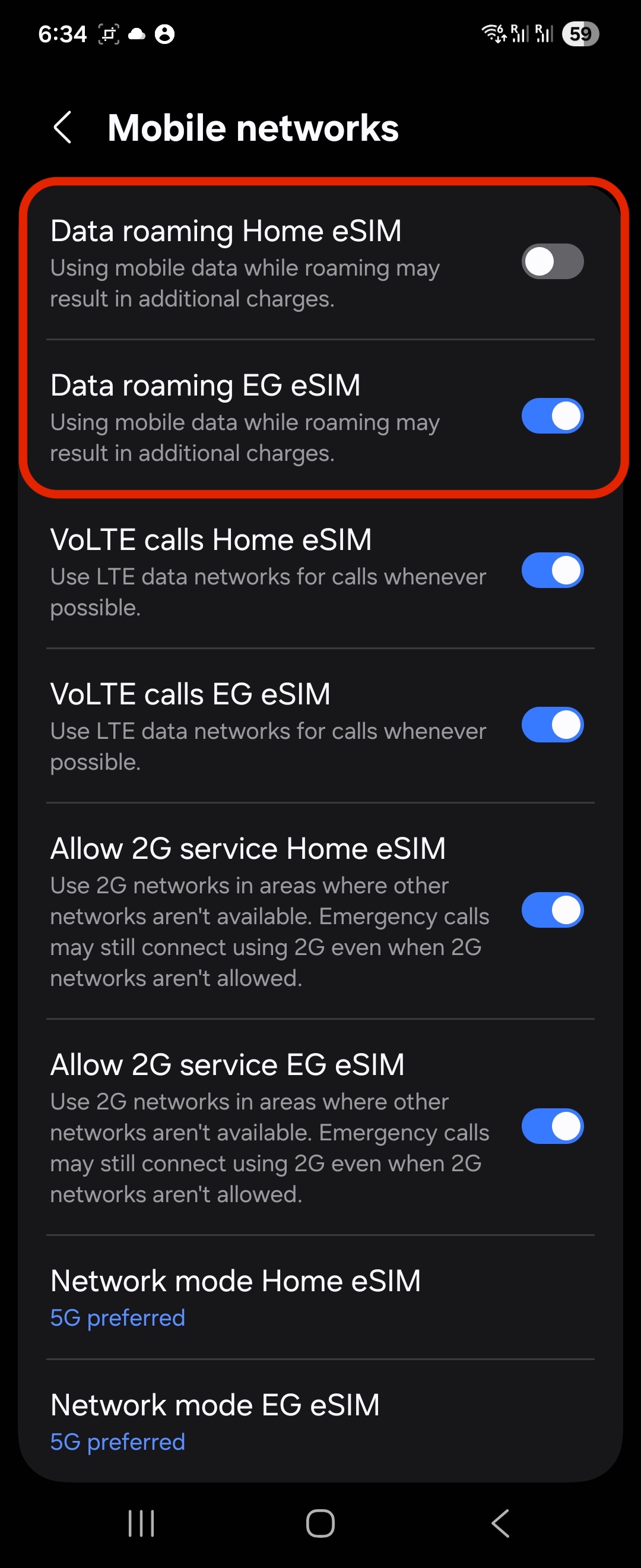
Tap Mobile networks.
Make sure Data Roaming is:
ON for your DataFly eSIM
OFF for your primary/national SIM
You’re all set 🎉
Once Data Roaming is enabled for the DataFly eSIM (and disabled on your primary SIM), you should be able to use mobile data while traveling without surprises. If data doesn’t work right away, try toggling Airplane Mode ON/OFF or restarting the phone.